Notes
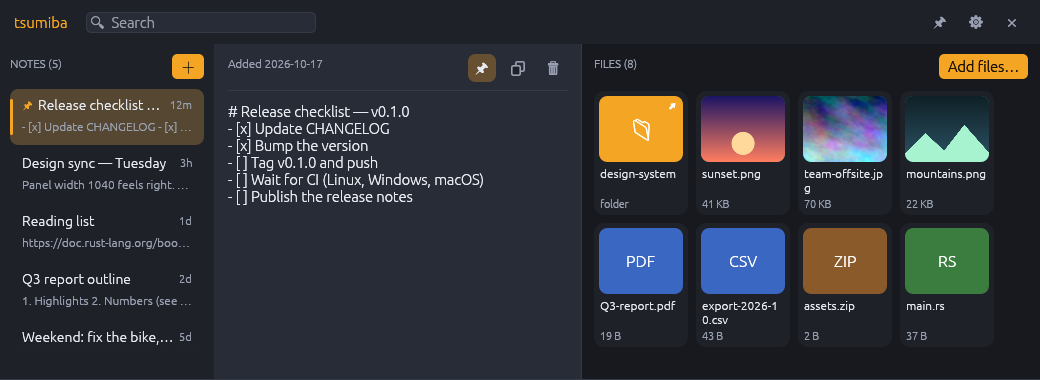
The left side of the shelf is for notes: a list on the left, the open note on the right.
Writing
Opening the shelf puts you in an empty note with the cursor in it, so the quickest use is: summon, type, move away. Nothing needs to be saved by hand. A note is written to disk about half a second after you stop typing, and also when you switch notes, hide the shelf or quit. An empty draft is never saved, so opening the shelf and closing it again leaves nothing behind.
Notes are plain text. You can write Markdown, and the first line becomes the note’s
title in the list (a leading # is dropped), but nothing is rendered: what you type is
what you see. That keeps notes trivially portable. They are ordinary .md files; see
Data and sync.
A single note can be up to 4 MiB.
The list
- Order: pinned notes first, then the most recently changed.
- Each row shows the title, the first line of text after it, and how long ago the note
changed (
now,5m,3h,2d, then a date). - Click a row to open the note. Opening another note saves the current one first.
- Right-click a row for Pin / Unpin, Copy text and Delete. The editor’s toolbar has the same three as buttons.
- New note: the amber + button, or Ctrl/⌘+N.
Pinning
A pinned note sits at the top of the list with a pin mark, whatever its age. It is the simplest way to keep a scratchpad, a checklist or a “current thing” always one glance away.
Deleting, and getting it back
Delete, or emptying a note completely (select all, delete), removes it, and a message at the bottom of the panel offers Undo for six seconds. After that the note is not gone: it is in the trash folder for 30 days, where you can still fetch it by hand (Data and sync).
Searching
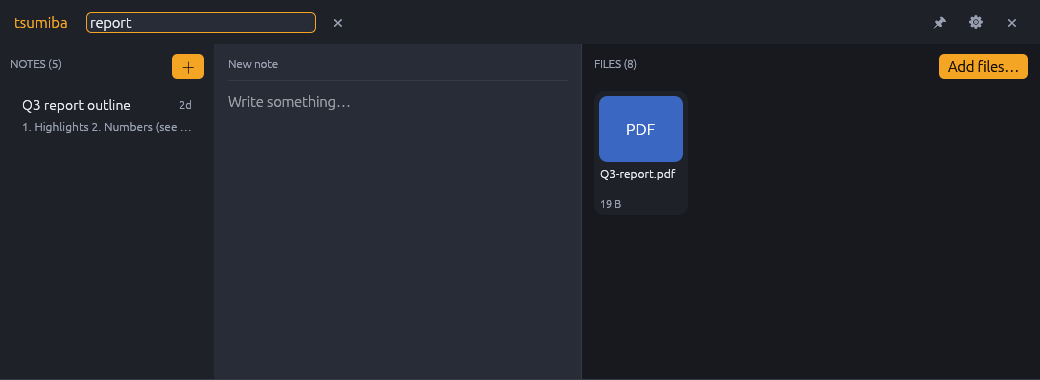
Ctrl/⌘+F (or click the search box in the header) and type. Notes and files are filtered together, case-insensitively: a note matches if its text contains what you typed, a file if its name or its source address does.
From outside the app
Notes can also be created without opening the shelf: from the
browser extension, the command line
(tsumiba note "…"), or the HTTP API. A note created that way appears in the
list right away if the shelf is open.
Japanese and other languages
Notes are UTF-8 and any language works. tsumiba has no fonts of its own for Japanese, Chinese or Korean; it borrows a suitable one that your system already has. See Troubleshooting.