Files
The right side of the shelf is for files: a wall of tiles you can drop things onto.
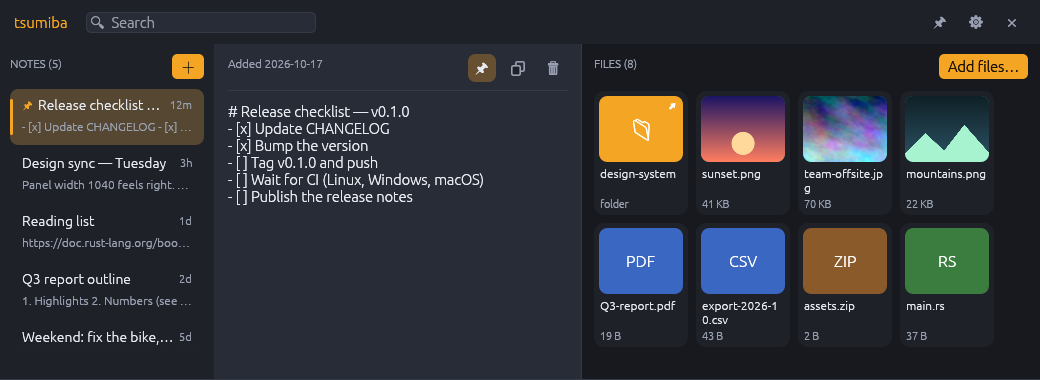
Adding files
- Drop files or folders anywhere on the shelf. A highlighted overlay appears while you drag over it.
- Add files… opens the system file dialog.
- Drag to the top edge: with the shelf hidden, dragging a file to the top edge opens it at once, so you can drop right there (Summoning the shelf).
- From a terminal:
tsumiba add report.pdf photos/(Command line). - From the browser: the extension sends images (and links to pages).
Copy or link
By default tsumiba keeps a copy inside its own folder, so the shelf survives the original being moved or deleted. That is the right choice for screenshots and downloads you are about to tidy away.
The alternative is link: tsumiba only remembers where the file is. Nothing is copied,
which suits big files you do not want twice. If the original later disappears, the tile
is marked missing; it is never silently dropped. Choose the mode in
Settings → Files, or storage.mode, or per command with tsumiba add --link.
Folders are always linked. Copying a folder could mean copying your entire home directory by accident, so a dropped folder becomes a link, shown as a folder tile.
Two things never change: removing a link from the shelf only forgets the location, and the original is never deleted. And every copy lives in its own directory, so adding two different files with the same name keeps both.
The tiles
Each tile shows a thumbnail for images (PNG, JPEG, GIF and WebP up to 8 MiB; bigger or other formats get a coloured type badge instead, because decoding a 50-megapixel photo to draw 64 pixels of it would stall the panel), the name, and the size. A pin mark means pinned (pinned files sort first), an arrow means linked.
- Click selects a tile; double-click opens the file with its default program.
- Hover for the full name, size, age, the address it came from (for files from the browser) and, for links, the real location.
- Right-click for the menu:
| Item | Does |
|---|---|
| Open | Opens it with its default program |
| Show in folder | Shows it selected in Explorer, Finder or your file manager |
| Copy file | Puts the file itself on the clipboard, so you can paste it into a file manager, a mail window or a chat |
| Copy path | Puts the full path on the clipboard |
| Save a copy… | Asks where, and copies it there |
| Rename | Renames it (for a link, only its name on the shelf) |
| Pin / Unpin | Pins it to the front |
| Remove from shelf | Removes it (a copy goes to the trash; a link is only forgotten) |
Copy file and Save a copy… are not offered for folders.
Delete (or Backspace) removes the selected tile when no text field has the keyboard.
Removing, and the trash
Removing a copy moves it to the trash folder, where it stays for 30 days before it is purged. A message offers Undo for six seconds; after that you can still restore it by hand (Data and sync). Removing a link just forgets it, with the same Undo.
Dragging files out
Warning
Not supported yet. You cannot drag a tile out of the shelf into another application.
The window toolkit tsumiba uses (egui/eframe) can receive a drag from other programs but cannot start a native one. Doing it properly would mean per-platform code for Windows (OLE), macOS (NSDraggingSource), X11 (XDND) and Wayland (a data-device offer), and that is future work. Meanwhile, three things get a file out in a click or two:
- Show in folder, then drag from the file manager.
- Copy file, then paste where you need it.
- Save a copy….
If dragging out is what you mainly need, yeet (Wayland and Windows) and Yoink (macOS) are built around exactly that.