Summoning the shelf
tsumiba lives in the background and appears when you ask. There are five ways to ask.
| To… | Do |
|---|---|
| Open the shelf | Rest the pointer on the top edge of the screen |
| Press Ctrl+Alt+Space (changeable) | |
| Click the tray icon | |
Run tsumiba toggle (or tsumiba show) | |
| Open it while dragging | Drag a file to the top edge: it opens at once |
| Hide it | Esc, move the pointer away, click another window, or use the shortcut again |
Starting tsumiba yourself (from the Start menu, Launchpad, or by running tsumiba)
opens the shelf. If it is already running, the running copy is asked to show itself;
there is never a second copy. A copy started at login with --background waits in the
tray instead.
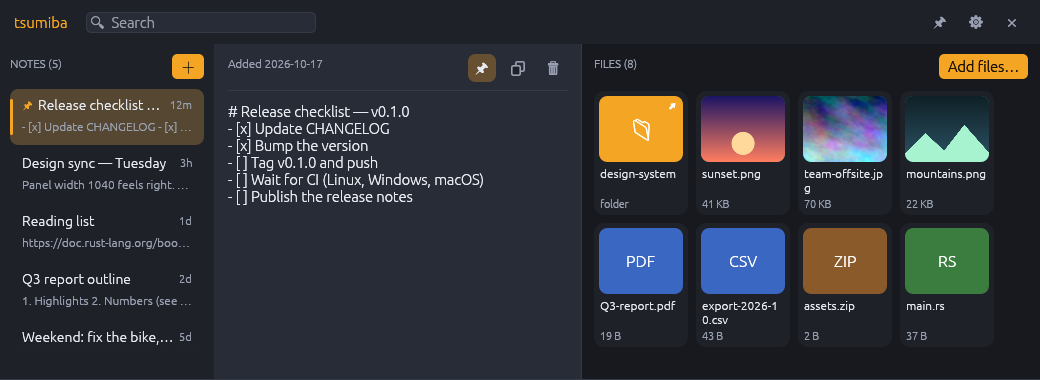
The top edge
The pointer has to touch the top row of a monitor, in the middle part of it, and stay there for a moment. The rules are deliberately cautious, because the top of the screen is also where title bars and browser tabs are:
- Middle part only. The active stretch is as wide as the panel and centred, so the panel appears right where you are pointing. Reaching for a tab at the left or right does nothing.
- A short rest. The pointer must stay for 250 ms (adjustable, or 0 for instant). Brushing past the edge on the way to a title bar does not open anything.
- Dragging is instant. With the mouse button held (you are dragging something) there is no delay: drag a file to the top edge and the shelf is there to receive it.
- Once per visit. After it opens, it does not open again until the pointer has left the edge and come back.
- Each monitor has its own edge. The shelf opens on the monitor whose edge you touched.
The edge is watched by polling the pointer about 20 times a second, and only while the
shelf is hidden and the setting is on. Turn it off in Settings → Summon, or set
trigger.edge = false, if you would rather use only the shortcut. The delay is
trigger.edge_dwell_ms.
Note
The edge trigger needs to read the pointer’s position anywhere on the desktop. Windows, macOS and X11 allow that without any permission; Wayland does not (see below).
The shortcut
The default is Ctrl+Alt+Space. Change it in Settings → Summon: click the shortcut button, then press the keys you want (Esc cancels). A shortcut needs at least one modifier (Ctrl, Alt, Shift or Super/Cmd), except for the function keys, because a global shortcut with a bare letter would steal that letter from every other program.
If another program already owns the combination, tsumiba says so and keeps the shortcut
it had. In config.toml the shortcut is a string such as "Ctrl+Alt+Space",
"Ctrl+Shift+K" or "Cmd+Option+Space"; an empty string turns it off. See
Configuration.
The tray icon
tsumiba puts an icon in the notification area (Windows), the menu bar (macOS) or the status-notifier tray (Linux). The menu has Show / hide, Settings… and Quit. On Windows a left click toggles the shelf and the right click opens the menu; on macOS a click opens the menu; on Linux what a click does is up to your desktop’s tray, but the menu is always there.
On GNOME, status icons need the AppIndicator extension, as for every other tray
application there. Without any tray, the shortcut and tsumiba toggle still work.
Hiding
The shelf hides itself when you are done with it:
- when the pointer has left it for 0.7 seconds (after it had been over it),
- as soon as you click another window,
- on Esc (in Settings, Esc goes back first),
- with the shortcut, the tray icon,
tsumiba toggleortsumiba hide.
It does not hide itself while you have unsaved text in a focused field, while the
pin button in the header is on (Keep open), while a menu, the rename box or a file
dialog is open, while you are choosing a new shortcut, while you are in Settings, or
while files are being dragged over it. Closing the window (Alt+F4)
hides it rather than quitting. To quit, use the tray menu or tsumiba quit.
Size and place
The panel is 1040 × 380 points by default, centred on the top edge, and never larger
than the monitor. Change the size in Settings → Panel, or with panel.width and
panel.height. It slides down in about a sixth of a second. On macOS it sits just below
the menu bar.
With several monitors it opens on the one under the pointer (the one whose edge you touched, for the edge trigger). Mixed-DPI setups are handled on a best-effort basis.
Wayland
Wayland does not let an application read the pointer outside its own windows, grab a key globally, or place and raise its own window. So there:
- there is no top-edge trigger and no global shortcut (Settings greys them out and says why);
- the shelf is an ordinary window, with a title bar, shown where your compositor puts it, with no slide animation;
- you bind
tsumiba toggleto a key in your desktop’s keyboard settings.
The tray icon works wherever a status-notifier host is running. tsumiba honours
WINIT_UNIX_BACKEND=x11 (it then runs as an X11 client through XWayland and treats the
session as X11), but that combination has not been tested, and XWayland only reports the
pointer and keys while they are over X11 windows.
Start at login
Settings → General → Start at login adds a login entry (a registry value on Windows,
a launch agent on macOS, an autostart .desktop file on Linux) that runs
tsumiba --background: it waits in the tray and does not open the shelf at every login.