tsumiba
Notes and files, one gesture away.
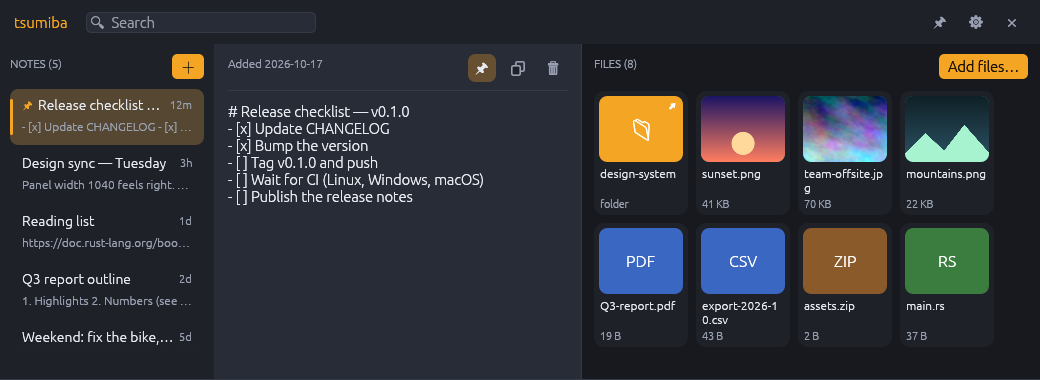
tsumiba (積み場, “a place to pile things”) is a memo and file shelf that slides in from the top edge of your screen. Rest the pointer on the edge, or press a shortcut, and it drops down: jot a note, drop a file on it, and get back to what you were doing. It hides itself when you do, and it costs nothing while it is hidden.
It runs on Windows, macOS and Linux, is written in Rust, and is MIT licensed.
What it is, and what it is not
tsumiba is the part of Unclutter that people reach for most, rebuilt for every desktop. Unclutter, which is macOS-only, has three panels: a clipboard history, a file drop zone and notes. tsumiba keeps two of them, on purpose: notes and files. There is no clipboard manager.
On top of that it adds a browser extension that sends the page, selection, link or image you are looking at to the shelf, and a command line for scripts.
| Notes | Plain Markdown files, saved as you type, searchable, pinnable. Opening the shelf puts you in an empty note, ready to type. |
| Files | Drop anything on it. Keep a private copy, or just remember where the original is. Thumbnails for images. Deleted items stay in a trash for 30 days. |
| Browser extension | Chrome, Edge, Brave and Firefox. Right-click → Send to tsumiba, or use the popup for a quick note. |
| Command line | tsumiba note "buy milk", tsumiba add report.pdf, tsumiba list --json. Works with or without the app running. |
| Local and private | No account, no cloud, no telemetry. The only thing it listens on is 127.0.0.1, behind a token. |
| English and Japanese | The interface follows your system language; light and dark themes follow your system too. |
Where to start
- New here? Install it, then read Summoning the shelf.
- Want the browser button? Browser extension.
- Scripting? Command line and the HTTP API.
- Something not working? Troubleshooting and FAQ.
An honest status
This is version 0.1.0. What has and has not been checked is spelled out on the Platform support page; in short:
- The window, the top-edge trigger, the shortcut and drag-to-edge were exercised end to end on Linux (X11), under a virtual display.
- Windows and macOS builds are compiled, linted and tested by CI (including the storage layer, the HTTP API and the command line), but the window, tray and shortcut behaviour there has not been verified on real machines yet.
- On Wayland an application cannot watch the pointer or grab a key, so the shelf
is an ordinary window there and you bind
tsumiba toggleto a key yourself. - Dragging a file out of the shelf into another app is not supported yet. Files explains why and what to do instead.
Installation
Every release is on the releases page,
together with a SHA256SUMS.txt file. The installer scripts below download the right
archive for your machine and check it against those sums before installing anything.
Note
Releases are not code-signed yet. Windows SmartScreen and macOS Gatekeeper will each ask you to confirm the first launch; the steps are below.
Windows
irm https://raw.githubusercontent.com/hjosugi/tsumiba/main/scripts/install.ps1 | iex
This unpacks tsumiba under %LOCALAPPDATA%\Programs\tsumiba, adds that folder to your
user PATH and creates a Start menu shortcut. No administrator rights are needed.
Prefer to do it by hand? Download tsumiba-<version>-windows-x86_64.zip, unzip it
anywhere and run tsumiba.exe. Nothing else has to be installed, and nothing is
written outside tsumiba’s own folders (Data and sync).
SmartScreen says “Windows protected your PC” the first time: choose More info, then Run anyway.
macOS
curl -fsSL https://raw.githubusercontent.com/hjosugi/tsumiba/main/scripts/install.sh | sh
This installs Tsumiba.app into ~/Applications and puts a tsumiba command in
~/.local/bin. Or take it by hand: open the .dmg and drag Tsumiba to
Applications, or unzip tsumiba-<version>-macos-universal.zip. One universal build
covers Apple Silicon and Intel.
The app is ad-hoc signed but not notarised, so Gatekeeper blocks the first launch. Either right-click the app and choose Open, or remove the quarantine flag:
xattr -dr com.apple.quarantine /Applications/Tsumiba.app
tsumiba is an “agent” app: it has no Dock icon and no menu bar of its own. You find it in the menu bar’s status area, and it slides in from the top edge.
Linux
curl -fsSL https://raw.githubusercontent.com/hjosugi/tsumiba/main/scripts/install.sh | sh
This installs into ~/.local (no root): the tsumiba binary, a desktop file and the
icons. Or take tsumiba-<version>-linux-<arch>.tar.gz from the release page, unpack it
and run the install.sh inside:
./install.sh                      # into ~/.local
./install.sh --prefix /usr/local  # system-wide (run with sudo)
The release page says which architectures were built. Make sure ~/.local/bin is on
your PATH.
Linux requirements
tsumiba draws with OpenGL and talks to X11 or Wayland, and it loads those libraries when it starts. A normal desktop already has all of them; a minimal container or server image may not. If a library is missing, tsumiba says which one and exits. You need:
- OpenGL (
libGL,libEGL): Mesa or your GPU vendor’s driver; - X11 sessions:
libX11,libxcbandlibxkbcommon-x11. The X11 window needs the last one (Debian and Ubuntu:libxkbcommon-x11-0) at run time; without it tsumiba prints a hint naming the package and exits; - Wayland sessions:
libxkbcommonandlibwayland-client.
# Debian, Ubuntu (typical package names)
sudo apt-get install libgl1 libegl1 libxkbcommon0 libxkbcommon-x11-0 libx11-6 libxcb1 libwayland-client0
# Fedora
sudo dnf install mesa-libGL mesa-libEGL libxkbcommon libxkbcommon-x11 libX11 libxcb libwayland-client
# Arch
sudo pacman -S mesa libxkbcommon libxkbcommon-x11 libx11 libxcb wayland
On a machine without a GPU driver (a bare VM, a container) Mesa’s software renderer works:
set LIBGL_ALWAYS_SOFTWARE=1. That is how the author’s headless checks run.
Note
Wayland: an application cannot watch the pointer or grab a key there, so the top-edge trigger and the global shortcut do not exist. Bind the command
tsumiba toggleto a key in your desktop’s keyboard settings. See Summoning the shelf.
Nix
nix run github:hjosugi/tsumiba
The repository’s flake also provides a development shell: nix develop.
Build from source
You need Rust 1.92 or newer.
git clone https://github.com/hjosugi/tsumiba
cd tsumiba
cargo build --release          # target/release/tsumiba
cargo test --workspace
On Linux you also need pkg-config and the development files for libxcb, libxkbcommon,
libx11 and wayland. On Debian and Ubuntu:
sudo apt-get install pkg-config libxcb1-dev libxcb-randr0-dev libxkbcommon-dev \
  libx11-dev libwayland-dev
nix develop provides all of it, plus the tools for the headless GUI checks
(Contributing).
Updating and removing
Updating: run the installer again, or replace the files by hand. Your notes and
files live elsewhere and are untouched. Quit the old copy first (tsumiba quit).
Removing: quit tsumiba, delete the program, and, if you want everything gone, the
data and configuration folders (tsumiba paths prints them; see
Data and sync). If you turned on Start at login, turn it off in
Settings first, or remove the autostart entry your system keeps for it.
Summoning the shelf
tsumiba lives in the background and appears when you ask. There are five ways to ask.
| To… | Do |
|---|---|
| Open the shelf | Rest the pointer on the top edge of the screen |
| Press Ctrl+Alt+Space (changeable) | |
| Click the tray icon | |
Run tsumiba toggle (or tsumiba show) | |
| Open it while dragging | Drag a file to the top edge: it opens at once |
| Hide it | Esc, move the pointer away, click another window, or use the shortcut again |
Starting tsumiba yourself (from the Start menu, Launchpad, or by running tsumiba)
opens the shelf. If it is already running, the running copy is asked to show itself;
there is never a second copy. A copy started at login with --background waits in the
tray instead.
The top edge
The pointer has to touch the top row of a monitor, in the middle part of it, and stay there for a moment. The rules are deliberately cautious, because the top of the screen is also where title bars and browser tabs are:
- Middle part only. The active stretch is as wide as the panel and centred, so the panel appears right where you are pointing. Reaching for a tab at the left or right does nothing.
- A short rest. The pointer must stay for 250 ms (adjustable, or 0 for instant). Brushing past the edge on the way to a title bar does not open anything.
- Dragging is instant. With the mouse button held (you are dragging something) there is no delay: drag a file to the top edge and the shelf is there to receive it.
- Once per visit. After it opens, it does not open again until the pointer has left the edge and come back.
- Each monitor has its own edge. The shelf opens on the monitor whose edge you touched.
The edge is watched by polling the pointer about 20 times a second, and only while the
shelf is hidden and the setting is on. Turn it off in Settings → Summon, or set
trigger.edge = false, if you would rather use only the shortcut. The delay is
trigger.edge_dwell_ms.
Note
The edge trigger needs to read the pointer’s position anywhere on the desktop. Windows, macOS and X11 allow that without any permission; Wayland does not (see below).
The shortcut
The default is Ctrl+Alt+Space. Change it in Settings → Summon: click the shortcut button, then press the keys you want (Esc cancels). A shortcut needs at least one modifier (Ctrl, Alt, Shift or Super/Cmd), except for the function keys, because a global shortcut with a bare letter would steal that letter from every other program.
If another program already owns the combination, tsumiba says so and keeps the shortcut
it had. In config.toml the shortcut is a string such as "Ctrl+Alt+Space",
"Ctrl+Shift+K" or "Cmd+Option+Space"; an empty string turns it off. See
Configuration.
The tray icon
tsumiba puts an icon in the notification area (Windows), the menu bar (macOS) or the status-notifier tray (Linux). The menu has Show / hide, Settings… and Quit. On Windows a left click toggles the shelf and the right click opens the menu; on macOS a click opens the menu; on Linux what a click does is up to your desktop’s tray, but the menu is always there.
On GNOME, status icons need the AppIndicator extension, as for every other tray
application there. Without any tray, the shortcut and tsumiba toggle still work.
Hiding
The shelf hides itself when you are done with it:
- when the pointer has left it for 0.7 seconds (after it had been over it),
- as soon as you click another window,
- on Esc (in Settings, Esc goes back first),
- with the shortcut, the tray icon,
tsumiba toggleortsumiba hide.
It does not hide itself while you have unsaved text in a focused field, while the
pin button in the header is on (Keep open), while a menu, the rename box or a file
dialog is open, while you are choosing a new shortcut, while you are in Settings, or
while files are being dragged over it. Closing the window (Alt+F4)
hides it rather than quitting. To quit, use the tray menu or tsumiba quit.
Size and place
The panel is 1040 × 380 points by default, centred on the top edge, and never larger
than the monitor. Change the size in Settings → Panel, or with panel.width and
panel.height. It slides down in about a sixth of a second. On macOS it sits just below
the menu bar.
With several monitors it opens on the one under the pointer (the one whose edge you touched, for the edge trigger). Mixed-DPI setups are handled on a best-effort basis.
Wayland
Wayland does not let an application read the pointer outside its own windows, grab a key globally, or place and raise its own window. So there:
- there is no top-edge trigger and no global shortcut (Settings greys them out and says why);
- the shelf is an ordinary window, with a title bar, shown where your compositor puts it, with no slide animation;
- you bind
tsumiba toggleto a key in your desktop’s keyboard settings.
The tray icon works wherever a status-notifier host is running. tsumiba honours
WINIT_UNIX_BACKEND=x11 (it then runs as an X11 client through XWayland and treats the
session as X11), but that combination has not been tested, and XWayland only reports the
pointer and keys while they are over X11 windows.
Start at login
Settings → General → Start at login adds a login entry (a registry value on Windows,
a launch agent on macOS, an autostart .desktop file on Linux) that runs
tsumiba --background: it waits in the tray and does not open the shelf at every login.
Notes
The left side of the shelf is for notes: a list on the left, the open note on the right.
Writing
Opening the shelf puts you in an empty note with the cursor in it, so the quickest use is: summon, type, move away. Nothing needs to be saved by hand. A note is written to disk about half a second after you stop typing, and also when you switch notes, hide the shelf or quit. An empty draft is never saved, so opening the shelf and closing it again leaves nothing behind.
Notes are plain text. You can write Markdown, and the first line becomes the note’s
title in the list (a leading # is dropped), but nothing is rendered: what you type is
what you see. That keeps notes trivially portable. They are ordinary .md files; see
Data and sync.
A single note can be up to 4 MiB.
The list
- Order: pinned notes first, then the most recently changed.
- Each row shows the title, the first line of text after it, and how long ago the note
changed (
now,5m,3h,2d, then a date). - Click a row to open the note. Opening another note saves the current one first.
- Right-click a row for Pin / Unpin, Copy text and Delete. The editor’s toolbar has the same three as buttons.
- New note: the amber + button, or Ctrl/⌘+N.
Pinning
A pinned note sits at the top of the list with a pin mark, whatever its age. It is the simplest way to keep a scratchpad, a checklist or a “current thing” always one glance away.
Deleting, and getting it back
Delete, or emptying a note completely (select all, delete), removes it, and a message at the bottom of the panel offers Undo for six seconds. After that the note is not gone: it is in the trash folder for 30 days, where you can still fetch it by hand (Data and sync).
Searching
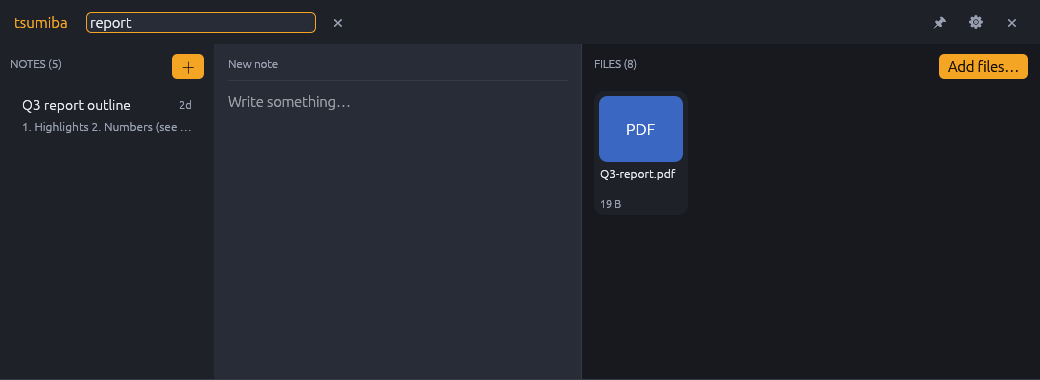
Ctrl/⌘+F (or click the search box in the header) and type. Notes and files are filtered together, case-insensitively: a note matches if its text contains what you typed, a file if its name or its source address does.
From outside the app
Notes can also be created without opening the shelf: from the
browser extension, the command line
(tsumiba note "…"), or the HTTP API. A note created that way appears in the
list right away if the shelf is open.
Japanese and other languages
Notes are UTF-8 and any language works. tsumiba has no fonts of its own for Japanese, Chinese or Korean; it borrows a suitable one that your system already has. See Troubleshooting.
Files
The right side of the shelf is for files: a wall of tiles you can drop things onto.
Adding files
- Drop files or folders anywhere on the shelf. A highlighted overlay appears while you drag over it.
- Add files… opens the system file dialog.
- Drag to the top edge: with the shelf hidden, dragging a file to the top edge opens it at once, so you can drop right there (Summoning the shelf).
- From a terminal:
tsumiba add report.pdf photos/(Command line). - From the browser: the extension sends images (and links to pages).
Copy or link
By default tsumiba keeps a copy inside its own folder, so the shelf survives the original being moved or deleted. That is the right choice for screenshots and downloads you are about to tidy away.
The alternative is link: tsumiba only remembers where the file is. Nothing is copied,
which suits big files you do not want twice. If the original later disappears, the tile
is marked missing; it is never silently dropped. Choose the mode in
Settings → Files, or storage.mode, or per command with tsumiba add --link.
Folders are always linked. Copying a folder could mean copying your entire home directory by accident, so a dropped folder becomes a link, shown as a folder tile.
Two things never change: removing a link from the shelf only forgets the location, and the original is never deleted. And every copy lives in its own directory, so adding two different files with the same name keeps both.
The tiles
Each tile shows a thumbnail for images (PNG, JPEG, GIF and WebP up to 8 MiB; bigger or other formats get a coloured type badge instead, because decoding a 50-megapixel photo to draw 64 pixels of it would stall the panel), the name, and the size. A pin mark means pinned (pinned files sort first), an arrow means linked.
- Click selects a tile; double-click opens the file with its default program.
- Hover for the full name, size, age, the address it came from (for files from the browser) and, for links, the real location.
- Right-click for the menu:
| Item | Does |
|---|---|
| Open | Opens it with its default program |
| Show in folder | Shows it selected in Explorer, Finder or your file manager |
| Copy file | Puts the file itself on the clipboard, so you can paste it into a file manager, a mail window or a chat |
| Copy path | Puts the full path on the clipboard |
| Save a copy… | Asks where, and copies it there |
| Rename | Renames it (for a link, only its name on the shelf) |
| Pin / Unpin | Pins it to the front |
| Remove from shelf | Removes it (a copy goes to the trash; a link is only forgotten) |
Copy file and Save a copy… are not offered for folders.
Delete (or Backspace) removes the selected tile when no text field has the keyboard.
Removing, and the trash
Removing a copy moves it to the trash folder, where it stays for 30 days before it is purged. A message offers Undo for six seconds; after that you can still restore it by hand (Data and sync). Removing a link just forgets it, with the same Undo.
Dragging files out
Warning
Not supported yet. You cannot drag a tile out of the shelf into another application.
The window toolkit tsumiba uses (egui/eframe) can receive a drag from other programs but cannot start a native one. Doing it properly would mean per-platform code for Windows (OLE), macOS (NSDraggingSource), X11 (XDND) and Wayland (a data-device offer), and that is future work. Meanwhile, three things get a file out in a click or two:
- Show in folder, then drag from the file manager.
- Copy file, then paste where you need it.
- Save a copy….
If dragging out is what you mainly need, yeet (Wayland and Windows) and Yoink (macOS) are built around exactly that.
Browser extension
The extension adds a small button and a few right-click items to your browser that send what you are looking at to the shelf: the page, a selection, a link or an image. It works with Chrome, Edge, Brave (anything Chromium-based) and Firefox, as a Manifest V3 extension.
It talks only to the tsumiba app on the same computer, over 127.0.0.1. Nothing goes to
any server (Privacy and security).
Note
The extension is not in the Chrome Web Store, Edge Add-ons or addons.mozilla.org yet. For now you load it from the zip on the release page. Because it is not signed by Mozilla, Firefox only keeps it until you restart the browser (below).
Warning
How much has this been tested? The extension was exercised in headless Chromium (service worker, menus, shortcut, popup and options pages) and the Firefox build was checked with
web-ext lint. It has never been run in Firefox, Edge or Brave, nor on a real, non-headless Chrome. Expect rough edges and please report them.
Install
Download the zip for your browser from the
releases page:
tsumiba-extension-chrome-<version>.zip or tsumiba-extension-firefox-<version>.zip.
Chrome, Edge, Brave
- Unzip it somewhere you will keep it (the browser reads the files from there).
- Open
chrome://extensions(edge://extensionsin Edge,brave://extensionsin Brave). - Turn on Developer mode.
- Choose Load unpacked and select the unzipped folder.
Firefox
- Open
about:debugging#/runtime/this-firefox. - Choose Load Temporary Add-on… and select the zip (or the
manifest.jsoninside the unzipped folder). - Temporary add-ons are removed when Firefox quits. Load it again after a restart until
a signed version is published. Firefox release builds only keep add-ons that Mozilla has
signed; for a permanent install today you need Firefox Developer Edition, Nightly or ESR
with
xpinstall.signatures.requiredset tofalse. Firefox 128 or newer is required.
Pin the extension’s button to the toolbar so you can reach the popup.
Building it yourself: from a checkout, node extension/build.mjs (it needs the zip
program) writes extension/dist/tsumiba-extension-chrome-<version>.zip,
extension/dist/tsumiba-extension-firefox-<version>.zip, and the unzipped folders next to them.
Pair it once
The extension needs the token that proves it is allowed to talk to your tsumiba. Without it, nothing is sent.
- Start tsumiba.
- Get the token: run
tsumiba tokenin a terminal, or open tsumiba → Settings → Browser extension → Copy. - Open the extension’s options (right-click its button → Options, or open the popup →
Settings), paste the token, check the port (default
47821; it must match Settings → Browser extension in tsumiba), and choose Save. - Choose Test connection. It says Connected to tsumiba 0.1.0 when it works.
The token is stored in the browser’s extension storage and never leaves your computer. If
you regenerate it (tsumiba token --regenerate, or Regenerate in Settings), every
browser has to be paired again.
Using it
Right-click
| Right-click on… | Choose | What is saved |
|---|---|---|
| selected text | Send selection to tsumiba | a new note: the text as a Markdown quote, then a link to the page |
| a link | Send link to tsumiba | a new note: the link text as a heading, the address, and “From:” the page |
| an image | Send image to tsumiba | the image itself, as a file on the shelf (its source is the page) |
| the page | Send page to tsumiba | a new note: the title as a heading, then the address |
The result shows on the toolbar button: a green ✓ for success, a red ! for a problem, with the reason in its tooltip.
A note from a selection looks like this:
> The shelf slides in from the top edge of the screen
> and goes away when you do.

[tsumiba documentation](https://hjosugi.github.io/tsumiba/en/)
The popup
Click the toolbar button for:
- Connection status: connected (with version and counts), not paired, not running, wrong token.
- Quick note: type, then Save note (or the shortcut shown below the box).
- Save this page and Save selection.
- Open shelf, which asks the running tsumiba to show itself.
Keyboard
Alt+Shift+S sends the current page. You can change it in your
browser’s extension shortcut settings (chrome://extensions/shortcuts; in Firefox,
the gear menu on about:addons → Manage Extension Shortcuts).
Images from other sites
To save an image itself, the browser sometimes has to download it from the site it came from, and an extension cannot do that without access to that site. The first time that fails, the extension asks once for access to all sites, and uses it only when you choose Send image to tsumiba. If you say no, it remembers, and saves the image’s address as a note instead of the picture. You can allow access later, or take it away, under Images from other sites in the extension’s options.
Before sending, the extension asks tsumiba for its upload limit (storage.max_upload_mb). An
image bigger than that is refused locally, with a clear message, instead of being sent only to
be turned away.
Images embedded in the page itself (data: URLs) are read directly. A blob: image belongs
to the page that made it and cannot be read from outside, so only its address is saved,
which is not much use beyond that page.
Permissions
| Permission | Why |
|---|---|
contextMenus | The four right-click items |
storage | Remember the port and token in this browser profile |
activeTab, scripting | Read the current tab’s title and address (and the selection, from the popup) when you ask |
http://127.0.0.1/*, http://localhost/* | Talk to tsumiba on this computer |
| optional: all sites | Fetch an image itself (see above); asked for only when needed |
The extension makes no other network requests: no analytics, no update pings of its own.
Troubleshooting
| The popup or badge says | Meaning and fix |
|---|---|
| Not paired yet | No token saved. Follow Pair it once. |
| tsumiba isn’t running | Start tsumiba. If it is running, check the port: if the default port was busy, tsumiba picked another and told you (Settings → Browser extension shows it); put that port in the options. |
| The token doesn’t match | The token changed (regenerated, or a different data folder). Copy it again. |
| That isn’t tsumiba | Another program answers on that port. Change the port in both places. |
| tsumiba refused the request | The server answered “forbidden”. Check the port. |
| Too large for tsumiba’s upload limit | Raise storage.max_upload_mb (Configuration). |
| The shortcut does nothing | Another extension or the system may own Alt+Shift+S. Change it in your browser’s extension shortcut settings. |
| Firefox: sending fails with no clear reason | Firefox treats host permissions as optional. Open about:addons → tsumiba → Permissions and allow access to 127.0.0.1. |
| An image arrives as a link, not a file | The browser could not fetch it and access to all sites was refused (or the site refuses scripts). Allow it under Images from other sites in the options. |
If you turned Accept the browser extension and command line off in tsumiba’s settings, the API is not running at all, and nothing here can connect.
Command line
The same program is the app and the command line. With no command, tsumiba opens the
shelf. With one, it does that one thing and exits.
tsumiba [--background] [COMMAND]
Commands that change the shelf (note, add, show, hide, toggle, quit) talk to
the running app if there is one, so its window stays current and a single process
owns the files. If none is running, note, add and list work on the files
directly, so they are safe in scripts, cron jobs and SSH sessions where nothing is
displayed.
Commands
| Command | What it does |
|---|---|
tsumiba or tsumiba run | Open the shelf, starting tsumiba if it is not running |
tsumiba --background | Start in the tray without opening the shelf (this is what Start at login runs) |
tsumiba show | Show the shelf (starts tsumiba if needed) |
tsumiba hide | Hide the shelf |
tsumiba toggle | Show it if hidden, hide it if shown (starts tsumiba if needed). Bind this to a key on Wayland. |
tsumiba note [TEXT]… [--pin] | Add a note |
tsumiba add PATH… [--link] | Add files or folders |
tsumiba list [--notes] [--files] [-q TEXT] [--json] | List notes and files |
tsumiba quit | Quit the running tsumiba |
tsumiba token [--regenerate] | Print the pairing token for the browser extension |
tsumiba paths | Print where tsumiba keeps its files |
tsumiba serve [--port N] | Run the local API without a window |
tsumiba --version, tsumiba --help | Version and help |
hide and quit have nothing to do when tsumiba is not running, and say so. show
and toggle start it instead, because starting it is showing it.
note
tsumiba note buy milk                       # the words are joined with spaces
tsumiba note $'# Meeting\nagenda: ...'        # bash/zsh: $'...' turns \n into a newline
echo "remember the umbrella" | tsumiba note # no arguments: read standard input
tsumiba note - < draft.md                   # "-" means standard input too
tsumiba note --pin "the thing I am doing now"
Prints the new note’s id. An empty note is refused.
add
tsumiba add report.pdf                      # copy it into the shelf
tsumiba add --link big.iso photos/          # remember where they are instead
Paths may be relative. For each file it prints a line ID<TAB>NAME. If some could not be
added (missing, unreadable) it says which, adds the rest, and exits with failure.
Folders are always linked. With a running app, the app does the copying; the setting in
storage.mode decides copy or link unless you pass --link.
list
tsumiba list                                # notes and files, tab-separated
tsumiba list --notes -q "release"           # only notes containing "release"
tsumiba list --files --json | jq -r '.files[].path'
Text output is one line per item:
note	01a148d44c055be0439c	* Release checklist
file	01a148d44c5b4e5d2364	screenshot.png	2032
That is note, id, title (preceded by * when the note is pinned); and file, id, name, size in bytes. With
--json you get one object, {"notes": [...], "files": [...]}, using the same shapes as
the HTTP API. -q filters the notes (it matches their text); it
does not filter files.
token
Prints the 64-hex-digit token the browser extension needs.
--regenerate replaces it, which signs out every paired browser. The running app keeps
the old token until it is restarted (using Regenerate in Settings restarts the server
for you).
paths
$ tsumiba paths
data    /home/me/.local/share/tsumiba
config  /home/me/.config/tsumiba/config.toml
token   /home/me/.config/tsumiba/token
log     /home/me/.local/share/tsumiba/tsumiba.log
serve
Runs the HTTP API with no window, until tsumiba quit (or it is killed). It prints
listening on 127.0.0.1:PORT. It refuses to start if tsumiba is already running. This is
what the project’s own tests use, and it is handy on a server, but the shelf on a server is
still the same plain files.
Exit codes
| Code | Meaning |
|---|---|
0 | It worked |
1 | It failed: the message is on standard error (not running, nothing to save, a file could not be added, …) |
2 | The command line itself was wrong (unknown command or flag) |
Examples
Bind a key on Wayland. In GNOME: Settings → Keyboard → Keyboard Shortcuts → Custom,
command tsumiba toggle. In Sway: bindsym $mod+space exec tsumiba toggle. In Hyprland:
bind = SUPER, space, exec, tsumiba toggle.
Capture from anywhere.
# the last command's output, as a note
history | tail -20 | tsumiba note

# a screenshot, straight to the shelf (Linux)
grim -g "$(slurp)" /tmp/shot.png && tsumiba add /tmp/shot.png
Over SSH. Nothing is displayed on the server, and none is needed:
ssh devbox 'tsumiba note "deploy finished"'
The note lands in that machine’s shelf. See Data and sync if you want shelves to meet.
A shell function.
n() { tsumiba note "$*"; } # n call the dentist
Windows
The Windows build is a GUI program, so that no console window flashes up when it starts at
login. When you run it with arguments from a terminal it attaches to that terminal, so
tsumiba --help and tsumiba list print. Because Windows does not make a terminal wait for
GUI programs, cmd.exe may show its prompt before the output has finished; PowerShell
usually behaves, and tsumiba list | more or start /wait tsumiba list make cmd wait. This
path has not been exercised on a real Windows machine yet.
Environment variables
| Variable | Effect |
|---|---|
TSUMIBA_HOME | Put everything under this folder: data/ and config/ inside it |
TSUMIBA_DATA_DIR | Only the data folder (wins over TSUMIBA_HOME) |
TSUMIBA_CONFIG_DIR | Only the config folder (wins over TSUMIBA_HOME) |
TSUMIBA_LOG | Log level for tsumiba’s own messages: error, warn, info (default), debug, trace, off |
TSUMIBA_RENDERER | auto, glow or wgpu: how the window is drawn; overrides general.renderer (Configuration) |
Using TSUMIBA_HOME is also how you run a second, independent shelf, or a throwaway one
for testing.
Configuration
Settings live in one file, config.toml. You can change most of them in the app
(Settings, the gear button, or Ctrl/⌘+,) and all of
them by editing the file. tsumiba paths prints where the file is.
- Missing file, missing keys: defaults. You never need to write a complete file.
- Unknown keys: ignored, so a file from a newer version still loads.
- Out-of-range numbers: clamped to a sensible range.
- When it is read: at start-up. Hand edits take effect after you restart tsumiba
(
tsumiba quit, thentsumiba). - When it is written: when you change a setting in the app. The app rewrites the whole file, so comments you added by hand are lost; the values are kept.
- A broken file (a typo that is not valid TOML, or a wrong type such as
mode = "teleport") is reported when tsumiba starts, and tsumiba runs on the defaults for that session instead of refusing to start. The broken file itself is left alone until you change a setting in the app, which writes a fresh one, so fix the typo before touching Settings.
Reference
[general]
| Key | Type | Default | Meaning |
|---|---|---|---|
language | "auto", "en", "ja" | "auto" | Interface language. auto follows the system locale: Japanese for ja…, English otherwise |
theme | "system", "light", "dark" | "system" | Colour theme. system follows the operating system |
launch_at_login | boolean | false | Start tsumiba (in the tray, --background) when you log in. Set it from Settings; that also creates or removes the login entry |
renderer | "auto", "glow", "wgpu" | "auto" | How the window is drawn (see below). The environment variable TSUMIBA_RENDERER overrides it |
The renderer. auto uses OpenGL (glow) everywhere. On Windows only, if OpenGL cannot
create the window, tsumiba restarts itself once with the wgpu renderer (DirectX 12, and
Microsoft’s software rasteriser, WARP, as a last resort). That happens on virtual machines and
remote-desktop sessions that have no graphics driver and only Windows’ built-in OpenGL 1.1 stub;
the log then says something like egui_glow requires opengl 2.0+. glow forces OpenGL
(and shows the error if it fails); wgpu forces wgpu. Linux and macOS builds do not contain
wgpu, so wgpu there falls back to OpenGL. A forced glow never retries, and the retry itself
never loops.
Note
That fallback is exercised by the GPU-less Windows runner in CI (a job that reports but does not fail the build; it passes), not on real virtual machines by the author.
[panel]
| Key | Type | Default | Range | Meaning |
|---|---|---|---|---|
show_notes | boolean | true | Show the notes column | |
show_files | boolean | true | Show the files column | |
width | number (points) | 1040 | 480–3000 | Width of the panel. Never wider than the monitor |
height | number (points) | 380 | 240–2000 | Height of the panel. Never taller than the monitor |
auto_hide | boolean | true | Hide when the pointer leaves (Summoning) |
If both show_notes and show_files are false, both are turned back on: an empty panel is
never what anyone wants.
[trigger]
| Key | Type | Default | Range | Meaning |
|---|---|---|---|---|
hotkey | string | "Ctrl+Alt+Space" | Global shortcut that toggles the shelf. Empty ("") turns it off | |
edge | boolean | true | Open when the pointer rests on the top edge | |
edge_dwell_ms | integer (ms) | 250 | 0–5000 | How long it must rest. 0 opens at once. Dragging a file ignores it |
Writing a shortcut. One or more modifiers, then one key, joined with +, in any letter
case: modifiers are Ctrl/Control, Alt/Option, Shift, Super/Cmd/Meta, and
CmdOrCtrl (⌘ on macOS, Ctrl elsewhere). Keys are letters,
digits, F1–F24, Space, Enter, Tab, Up/Down/Left/Right, Home, End,
PageUp, PageDown, Insert, Delete, Backspace, and punctuation such as -, =,
,, ., /, ;, `. At least one modifier is required, except for function keys.
Examples: "Ctrl+Alt+Space", "Ctrl+Shift+K", "Alt+F1", "Cmd+Option+Space",
"CmdOrCtrl+Shift+Y". On Wayland there are no global shortcuts to register; tsumiba says so when it starts.
[storage]
| Key | Type | Default | Range | Meaning |
|---|---|---|---|---|
mode | "copy", "link" | "copy" | What happens to a file you add: keep a private copy, or only remember where it is (link). Folders are always linked | |
max_upload_mb | integer (MiB) | 512 | 1–65536 | The largest file the HTTP API accepts (from the browser extension, for example) |
[api]
| Key | Type | Default | Meaning |
|---|---|---|---|
enabled | boolean | true | Run the local HTTP API used by the command line and the browser extension. Off: the extension cannot connect, and command-line commands work on the files directly |
port | integer | 47821 | Loopback port. 0 lets the system choose a free one. Use 0 or 1024–65535. If the port is taken, tsumiba picks a free one, tells you, and records it for the command line (the extension must then be given the new port) |
An annotated example
Every value below is the default, so this file changes nothing; delete what you do not need.
[general]
language = "auto"          # "auto" | "en" | "ja"
theme = "system"           # "system" | "light" | "dark"
launch_at_login = false
renderer = "auto"          # "auto" | "glow" | "wgpu" (wgpu exists on Windows only)

[panel]
show_notes = true
show_files = true
width = 1040.0             # points; 480-3000
height = 380.0             # points; 240-2000
auto_hide = true           # hide when the pointer leaves

[trigger]
hotkey = "Ctrl+Alt+Space"  # "" turns the shortcut off
edge = true                # open when the pointer rests on the top edge
edge_dwell_ms = 250        # 0-5000; dragging a file skips the wait

[storage]
mode = "copy"              # "copy" | "link"
max_upload_mb = 512        # 1-65536

[api]
enabled = true
port = 47821               # 0 = any free port
Environment variables
| Variable | Effect |
|---|---|
TSUMIBA_HOME | Keep everything under this folder (data/ and config/ inside it) |
TSUMIBA_DATA_DIR | Only the data folder. Wins over TSUMIBA_HOME |
TSUMIBA_CONFIG_DIR | Only the configuration folder. Wins over TSUMIBA_HOME |
TSUMIBA_LOG | Log verbosity for tsumiba’s own messages: error, warn, info (default), debug, trace, off |
TSUMIBA_RENDERER | auto, glow or wgpu: overrides general.renderer (above) |
The two commands tsumiba and tsumiba quit must see the same variables, because that is
how they find each other’s files.
Where things are
| Linux | macOS | Windows | |
|---|---|---|---|
| Data (notes, files, trash, log) | $XDG_DATA_HOME/tsumiba, usually ~/.local/share/tsumiba | ~/Library/Application Support/io.github.hjosugi.tsumiba | %APPDATA%\hjosugi\tsumiba\data |
Configuration (config.toml, token) | $XDG_CONFIG_HOME/tsumiba, usually ~/.config/tsumiba | the same folder as the data | %APPDATA%\hjosugi\tsumiba\config |
What is in them:
| File | Where | What |
|---|---|---|
config.toml | configuration | This page |
token | configuration | The pairing token (readable by you only, on Linux and macOS) |
server.json | configuration | Written while tsumiba runs: its port and process id, so the command line can find it. Removed on exit; a leftover one from a crash is ignored |
notes/<id>.md | data | One file per note |
files/<id>/<name> | data | One folder per stored file |
index.json | data | Pins and file metadata; rebuilt if damaged |
trash/ | data | Deleted items, kept 30 days |
tsumiba.log, tsumiba.log.old | data | The log; rotated at start-up when it passes 1 MiB |
More about the data folder: Data and sync.
HTTP API
While the app runs (or tsumiba serve), it answers a small HTTP API on your own computer.
The command line and the browser extension are its two
clients, and you can be a third.
- Address:
http://127.0.0.1:<port>/v1, default port 47821 (api.port).127.0.0.1only; it is never reachable from the network. - Format: JSON in, JSON out, UTF-8. Errors are
{"error": "message"}with an HTTP status that says what kind. - Authentication:
Authorization: Bearer <token>on everything exceptGET /ping. The token is inconfig/tokenand printed bytsumiba token. - Version: all paths start with
/v1. Fields only ever get added; ignore ones you do not know.
TOKEN=$(tsumiba token)
curl -s -H "Authorization: Bearer $TOKEN" http://127.0.0.1:47821/v1/status
# {"notes":3,"files":7,"visible":false,"max_upload_mb":512}
If the default port was taken when tsumiba started, it picked another and recorded it in
config/server.json ({"port": …, "pid": …, "version": …}); the command line reads
that file, other clients need to be told the port.
Security model
Any web page you visit can make your browser send requests to 127.0.0.1, so listening
on loopback alone is not protection. Every request passes three checks, in
this order, before anything is read or done:
Hostmust be127.0.0.1:<port>,localhost:<port>or[::1]:<port>. Anything else is403 unexpected Host header. This defeats DNS rebinding, where an attacker’s domain is made to resolve to127.0.0.1.Origin, when the request has one, must be a browser-extension origin:chrome-extension://…,moz-extension://…orsafari-web-extension://…. An ordinary web page’s origin (https://example.com,http://localhost,null) is403 this origin is not allowed, even with a valid token. Requests without anOrigin(curl, scripts) pass this check.- The token.
Authorization: Bearer <64 hex digits>, compared in constant time. Missing or wrong is401 missing or wrong token. The token never reaches a web page; the extension keeps it in its own storage.
Beyond that:
- The only unauthenticated endpoint is
GET /v1/ping, which reveals nothing but that this is tsumiba and its version, so a client can tell it from some other program that holds the port. It still has to pass theHostandOriginchecks. - CORS: for an allowed extension origin the server answers with
Access-Control-Allow-Origin: <that origin>andVary: Origin. A preflight (OPTIONS) from an allowed origin gets204withAccess-Control-Allow-Methods: GET, POST, PATCH, DELETE, OPTIONS,Access-Control-Allow-Headers: authorization, content-type, x-tsumiba-name, x-tsumiba-source, andAccess-Control-Max-Age: 600; it needs no token, because browsers never send one on a preflight. A preflight from any other origin is403and gets no CORS headers at all. - Responses carry
Cache-Control: no-storeandX-Content-Type-Options: nosniff. - Sizes: a JSON body may be up to 4 MiB plus a little (
413beyond that); an upload is limited bystorage.max_upload_mb(default 512 MiB). The limit is checked up front fromContent-Lengthand again while the body streams in, so a client that lies about the length, or sends no length (chunked), is cut off at the limit and nothing is left on disk. - File names are sanitised: only the last path component is kept, characters Windows
forbids become
_, reserved names such asCONare prefixed, the length is capped. A name like../../etc/cron.d/xbecomesxinside the shelf. - Ids in URLs must be exactly 20 lowercase hex digits; anything else cannot reach the file system.
Data shapes
Note
{
  "id": "01a148d44c055be0439c",
  "title": "Release checklist",
  "body": "# Release checklist\n- [ ] tag it\n",
  "pinned": true,
  "created_ms": 1760719443000,
  "updated_ms": 1760719443000
}
title is the first non-empty line without leading #s. Times are milliseconds since the
Unix epoch. created_ms is part of the id; updated_ms is the file’s modification time.
File
{
  "id": "01a148d44c5b4e5d2364",
  "name": "screenshot.png",
  "size": 2032,
  "added_ms": 1760719443000,
  "pinned": false,
  "source": "https://example.com/page",
  "link": false,
  "path": "/home/me/.local/share/tsumiba/files/01a148d44c5b4e5d2364/screenshot.png"
}
source is where it came from when known (a page address for browser uploads, the original
path for local imports) and may be null. link is true when only the location is
remembered; path is then the original. size of a folder link is 0.
Endpoints
| Method and path | Auth | Does |
|---|---|---|
GET /v1/ping | no | {"app":"tsumiba","version":"0.1.0"} |
GET /v1/status | yes | {"notes": n, "files": n, "visible": bool, "max_upload_mb": n} |
POST /v1/window | yes | Show, hide or toggle the shelf. 204 |
POST /v1/quit | yes | Quit tsumiba. 204 |
GET /v1/notes | yes | List notes (pinned first, then newest first) |
POST /v1/notes | yes | Create a note. 201 |
GET /v1/notes/{id} | yes | One note, or 404 |
PATCH /v1/notes/{id} | yes | Change a note’s text and/or pin. 200 |
DELETE /v1/notes/{id} | yes | Delete a note (to the trash). 204 |
GET /v1/files | yes | List files (pinned first, then newest first) |
POST /v1/files | yes | Upload a file (raw body). 201 |
POST /v1/files/import | yes | Import files from paths on this machine |
DELETE /v1/files/{id} | yes | Remove a file (a copy to the trash; a link is forgotten). 204 |
OPTIONS * | no | CORS preflight for extension origins. 204 |
GET /v1/status
notes and files are counts; visible is whether the shelf is on screen right now (always
false under tsumiba serve); max_upload_mb is the largest upload the server accepts, in
MiB (storage.max_upload_mb, 512 by default). A client that uploads files should read it
first and refuse an oversized file itself: when the server rejects an upload early it answers
413 and closes the connection while the body is still being sent, and on some systems the
client then sees a network error instead of the 413. The browser extension does exactly this.
POST /v1/window
curl -s -X POST -H "Authorization: Bearer $TOKEN" -H 'Content-Type: application/json' \
  -d '{"action":"toggle"}' http://127.0.0.1:47821/v1/window
action is "show", "hide" or "toggle"; anything else is 400.
Notes
# list, optionally filtered ("q" matches the text, case-insensitively) and limited
curl -s -H "Authorization: Bearer $TOKEN" 'http://127.0.0.1:47821/v1/notes?q=release&limit=10'

# create
curl -s -X POST -H "Authorization: Bearer $TOKEN" -H 'Content-Type: application/json' \
  -d '{"text":"# Hello\nfrom curl","pinned":true}' http://127.0.0.1:47821/v1/notes

# change: both fields are optional; absent ones are left alone
curl -s -X PATCH -H "Authorization: Bearer $TOKEN" -H 'Content-Type: application/json' \
  -d '{"text":"new text","pinned":false}' http://127.0.0.1:47821/v1/notes/01a148d44c055be0439c
POST takes {"text": string, "pinned": bool?}. text is required and may be up to 4 MiB.
PATCH takes {"text": string?, "pinned": bool?}.
Files
Upload takes the file’s bytes as the request body. The name and origin go in headers,
percent-encoded as UTF-8 (everything outside A-Z a-z 0-9 . _ ~ - becomes %XX):
| Header | Meaning |
|---|---|
X-Tsumiba-Name | The file name. Defaults to file |
X-Tsumiba-Source | Where it came from, usually a page address. Optional |
Content-Type | Used only to add an extension when the name has none (image/png → .png, also jpeg, gif, webp, svg, avif, pdf, txt, html, json, zip) |
curl -s -X POST -H "Authorization: Bearer $TOKEN" \
  -H 'X-Tsumiba-Name: report%202026.pdf' \
  -H 'X-Tsumiba-Source: https%3A%2F%2Fexample.com%2Freports' \
  -H 'Content-Type: application/pdf' \
  --data-binary @report.pdf http://127.0.0.1:47821/v1/files
Too big is 413.
Import asks tsumiba to read files that are already on the machine it runs on, which
saves sending the bytes through HTTP (this is what tsumiba add uses):
curl -s -X POST -H "Authorization: Bearer $TOKEN" -H 'Content-Type: application/json' \
  -d '{"paths":["/home/me/a.txt","/home/me/photos"],"link":false}' \
  http://127.0.0.1:47821/v1/files/import
# {"added":[{...}],"failed":[{"path":"...","error":"..."}]}
Paths must be absolute (a relative one is reported in failed). link: true stores links
instead of copies; leaving it out follows storage.mode. Folders are always links. The
status is 200 even when some paths failed: look at failed.
Errors
| Status | When |
|---|---|
400 | Malformed JSON, an unknown action, an invalid id |
401 | No token, or the wrong one |
403 | Wrong Host, or an Origin that is not a browser extension |
404 | No such note or file, or no such route |
413 | A body over the limit |
500 | Something failed on disk; the message says what |
Compatibility
The API is versioned by its path. The intent is that within /v1 only additions happen:
new endpoints, new response fields. Clients should ignore fields they do not know.
Data and sync
tsumiba keeps your things as ordinary files in one folder, on purpose: you can back
them up, sync them, grep them and open them in any editor, with or without tsumiba. tsumiba paths prints where the folder is; Configuration has
the locations for each system.
The layout
<data folder>/
├── index.json                  pins, and what is known about each file
├── notes/
│   ├── 01a148d44c055be0439c.md     one Markdown file per note
│   └── …
├── files/
│   ├── 01a148d44c5b4e5d2364/       one folder per stored file
│   │   └── screenshot.png          …holding the file under its own name
│   └── …
├── trash/
│   └── 1760719443123_01a1…/        deleted items, kept 30 days
└── tsumiba.log
Ids. Every note and file has a 20-character id of lowercase hex digits: the creation time in milliseconds (12 digits) followed by 8 random ones. Ids sort by creation time, and the creation time can be read back out of one, so it is stored nowhere else.
Notes are notes/<id>.md, UTF-8, exactly what you typed. A note’s modified time is
the file’s modification time. Whether it is pinned is the only thing about a note that is
not in the file itself: that is in index.json.
Files each get their own folder files/<id>/, which is why two files called
photo.png never collide. For a link, nothing is stored there: the location is
remembered in index.json, and the original is untouched.
index.json holds the ids of pinned notes, and for each file its name, size, when it was
added, whether it is pinned, where it came from, and, for links, the original path. It is
written atomically (a new file is written and renamed over the old one), so a crash never
leaves half a file.
It repairs itself
Everything that can be worked out from the folder is worked out from the folder. When tsumiba starts, and whenever the shelf is opened, it looks at the folder again:
- a
notes/<id>.mdit did not know is adopted as a note; - a note whose file is gone is dropped from the list;
- a note whose file changed (an editor, a sync tool) is reloaded;
- a
files/<id>/folder it did not know is adopted, taking its name from the file inside; - a stored file whose folder is gone is dropped;
- a link whose original has vanished stays on the shelf, marked missing.
So you can drop a .md file into notes/ (name it with a valid id), or delete things from
the folder by hand, and the shelf follows.
If index.json is unreadable (or was written by a newer tsumiba than this one), tsumiba
moves it aside as index.json.corrupt-<time>, tells you, and rebuilds from the folder. You
lose only what lived in the index and nowhere else: which items were pinned, the
source address of files, and links (which exist only in the index). Notes and copied
files are all still there.
The trash
Deleting a note, or removing a stored file, moves it to
trash/<time>_<id>/ instead of destroying it. Each entry holds a meta.json (what it was)
and a payload (the note’s text, or the file’s folder). Entries older than 30 days are
deleted when tsumiba starts. Removing a link leaves only a meta.json: there is no payload,
because the original was never touched.
The Undo button in the app restores an item straight away. To restore one by hand later:
- a note: move
payloadtonotes/<id>.md(the id is in the entry’s folder name, after the underscore); - a file: move the
payloadfolder tofiles/<id>. The shelf adopts it the next time it looks (pin and source are inmeta.jsonif you want to note them).
Anything in trash/ whose name tsumiba does not recognise is left alone.
Syncing
Because notes are single files with unique names, the folder works with Syncthing, Dropbox,
iCloud Drive, a Git repository or a plain rsync. Some advice:
- Sync
notes/andfiles/; leaveindex.jsonout. It is the one file two machines could both change, and a sync tool’s conflict copy of it is ignored but not merged. Each machine then adopts what arrives (see above); you lose pins and sources across machines, nothing else. - Changes show up when the shelf is opened, not live while it is already open.
- Editing one note on two machines at once is the usual sync conflict: the tool keeps one version, or makes a copy under a different name. A copy whose name is not a valid id is not a note, so it is ignored. Find it in the folder and merge by hand.
- Do not sync the configuration folder between machines, or at least not
tokenandserver.json: each machine should have its own token.
Point a machine at a folder of your choice with TSUMIBA_DATA_DIR (or
move everything with TSUMIBA_HOME). Put the
variable in your login environment so the app, the command line and the autostart entry all
see it.
Backing up
Copy the data folder (and, if you like, config.toml). Do it while tsumiba is idle or
quit, to avoid copying a note mid-write. Restoring is copying it back; the shelf adopts what
it finds.
Removing everything
Quit tsumiba, then delete the data and configuration folders. That is all it ever wrote (plus the login entry, if you turned on Start at login).
Privacy and security
Privacy
- No account, no cloud, no telemetry. tsumiba never sends your notes, your files or anything about you anywhere.
- No outgoing connections. The program contains an HTTP client, but it is used only to
reach your own tsumiba on
127.0.0.1(the command line talking to the app). It does not check for updates and does not contact any server. Updating is something you do on purpose. - The browser extension talks only to
127.0.0.1. It reads the page’s title, address and your selection only when you ask it to send them. - This documentation site makes no third-party requests either: no web fonts, no analytics, no script from elsewhere.
- Your data is plain files in a folder you choose (Data and sync). It is not encrypted; it is as private as the rest of your home folder. Use full-disk encryption if that matters to you.
What listens, and what protects it
When the app runs it listens on 127.0.0.1:47821 (configurable, or off with
api.enabled = false), for the command line and the browser extension. It is on the loopback
interface only, so other computers cannot reach it.
Loopback is still reachable by every program on your computer, and by every web page you open, through your browser. So the API is guarded (HTTP API has the details):
| Layer | Stops |
|---|---|
The Host header must name loopback and the right port | DNS rebinding: a malicious site whose domain is switched to 127.0.0.1 |
The Origin header, if present, must be a browser extension | Any ordinary web page, even one that somehow knew the token |
| A bearer token, 256 bits from the system’s random generator, compared in constant time | Everything else: other local users, other programs without file access, guessing |
The token lives in token in the configuration folder, readable only by you on Linux and
macOS. It is never sent to a web page; the extension keeps its copy in its own storage.
tsumiba token --regenerate replaces it.
What the token is worth
Treat the token like a password for your shelf. Whoever has it can read, add, change and delete your notes and files through the API, and, because the API can import files by path, can ask tsumiba to copy any file you can read into the shelf and then read it back. That is exactly as much as any program running as you could do directly, which is the real boundary here:
- A program running as you can read your notes folder, and your token file, without tsumiba’s help. tsumiba does not try to defend against that; neither can any desktop app.
- Other users on the same machine can connect to the port, but cannot read your token
(permissions
0600on Linux and macOS), so they get401. - Web pages are stopped by the Host and Origin checks even before the token is looked at.
Limits and honest caveats
- The data folder is not encrypted and tsumiba does not change its permissions; they are whatever your system gives new files. Make the folder private yourself if the machine is shared.
- On Windows the token file lives in your profile, which Windows already restricts to you; no extra permissions are set.
- Releases are not code-signed or notarised yet. Check downloads against
SHA256SUMS.txt; the installer scripts do this for you. - Local programs can see that something listens on the port (
GET /v1/pingis open by design, so clients can tell tsumiba from another program). It reveals the name and version, nothing else. - The extension’s optional “all sites” permission, if you grant it, is used only to download an image you chose to send.
Reporting a problem
Please report security problems privately, through GitHub’s
private vulnerability reporting,
so that they can be fixed before they are public (the repository’s
security policy has the details).
Ordinary bugs are welcome as issues; the output
of tsumiba paths and the last lines of the log file make a report much more useful.
Platform support
What works where, and, just as important, how sure anyone is. The legend:
- verified the author ran it end to end (on Linux/X11, under a virtual display with a scripted pointer and keyboard).
- CI compiled, linted and covered by automated tests on every push, on that operating system. Logic and storage, not a window on a screen.
- implemented the code is there; nobody has run it on that system yet.
- not possible the operating system forbids it.
The matrix
| Linux (X11) | Linux (Wayland) | Windows | macOS | |
|---|---|---|---|---|
| Builds, lints, unit tests | CI | CI | CI | CI |
| Storage, HTTP API and command-line tests (they run the real program) | verified CI | CI | CI | CI |
The real program starts, its event loop and API come up, show / hide / quit are accepted | verified | CI | CI smoke test, passing (scripts/smoke-gui-windows.ps1) | CI smoke test, passing (scripts/smoke-gui-macos.sh) |
| The window: starts hidden, shows and hides, slides in | verified | ordinary window, no slide; implemented | implemented | implemented |
| Window creation with no GPU (software rendering) | verified (Mesa software renderer, as in every check above) | implemented | CI GitHub’s GPU-less runner: OpenGL fails, the wgpu fallback (DirectX 12, software rasteriser) takes over and the window is created; not tried on real VMs | CI (virtualised runner) |
| Notes: write, auto-save, switch, search | verified | implemented | implemented | implemented |
| Notes: pin, delete + undo | implemented | implemented | implemented | implemented |
| Files: tiles, thumbnails; the settings screen | verified (looked at) | implemented | implemented | implemented |
| Files: right-click menu, rename, remove + undo | implemented | implemented | implemented | implemented |
| Top-edge trigger (rest, brush past, drag) | verified | not possible | implemented | implemented |
| Global shortcut | verified | not possible | implemented | implemented |
tsumiba show / hide / toggle | verified | implemented | implemented | implemented |
| Tray icon | implemented (needs a status-notifier host; GNOME: AppIndicator extension) | implemented (same) | implemented | implemented |
| Dropping files from other programs onto the shelf | implemented | implemented | implemented | implemented |
| Add files…, Save a copy… (native dialogs) | implemented | implemented | implemented | implemented |
| Open, Show in folder, Copy file | implemented | implemented | implemented | implemented |
| Japanese text (system CJK font fallback) | verified | implemented | implemented | implemented |
| Japanese text input (IME) | implemented | implemented | implemented | implemented |
| Start at login | implemented | implemented | implemented | implemented |
| Dragging a file out of the shelf | not implemented | not implemented | not implemented | not implemented |
| Code signing and notarisation | none | none | none | ad-hoc signed only |
The browser extension: its logic, its conversation with a real
tsumiba server, and the built extension loaded into headless Chromium (service worker,
menus, shortcut, popup, options) are covered by automated tests, and the Firefox build is
checked with web-ext lint. It has never been run in Firefox, Edge or Brave, so those are
implemented only.
Reading the table
Linux/X11 is the reference. Everything marked verified was exercised there, under a
virtual display (Xvfb) with a scripted keyboard and pointer: the window staying hidden at
start-up, appearing from tsumiba show, toggle and the shortcut, the edge trigger
(including that brushing past does not open it and that dragging opens it at once), hiding
when the pointer leaves, typing and saving notes, searching, the file tiles and thumbnails, the settings screen,
Japanese text, and the whole command line against a running app. The repository contains the script
that does the smoke-test part (scripts/smoke-gui-linux.sh), which CI runs.
Windows and macOS are built and tested, but not yet seen working. The same program is compiled for them, the storage layer, HTTP API and command line are tested there, a smoke test in CI starts the real program on each (and reports, without failing the build, whether the window could be created on a runner with no GPU), and the platform-specific parts (reading the pointer, the tray, the shortcut, the console attachment) are written against each system’s own interfaces. What nobody has done is sit at a real Windows or macOS machine and use the shelf. Expect rough edges there, and please report them.
Wayland is a deliberate limitation, not a bug. Wayland’s design stops an application from
reading the pointer outside its windows, grabbing a key globally, or positioning and raising
its own window. So the edge trigger and the shortcut cannot exist there. The shelf is an
ordinary window and you bind tsumiba toggle to a key
(Summoning the shelf).
Drag-out is not implemented anywhere, for a reason that lives in the window toolkit (Files).
Not planned
By design, tsumiba does not have a clipboard history, cloud sync, or accounts. The scope is notes and files.
Troubleshooting and FAQ
First, two things that make any report or fix easier:
tsumiba paths                    # where the config, data and log are
TSUMIBA_LOG=debug tsumiba        # run in a terminal with detailed logging
The log file is tsumiba.log in the data folder (tsumiba paths prints it; the
previous one is tsumiba.log.old). Start-up problems end up there even on Windows, where
the program has no console to print to.
Starting
Nothing appears when I start it
Starting tsumiba opens the shelf, so if nothing does, look at the terminal output (run
tsumiba from a terminal) and the log. Common causes:
- A system library is missing (Linux). tsumiba loads OpenGL,
libxkbcommon, the X11 keyboard librarylibxkbcommon-x11(X11 sessions), and the X11 or Wayland libraries when it starts, and says which one is missing. The commonest case is tsumiba needs the X11 keyboard library: installlibxkbcommon-x11-0(Debian, Ubuntu) orlibxkbcommon-x11(Fedora, Arch). See Linux requirements. - “The window could not be created” with an OpenGL message. tsumiba needs OpenGL 2.0 or
newer (3.x is better). On Linux machines without a GPU driver,
LIBGL_ALWAYS_SOFTWARE=1uses Mesa’s software renderer. On Windows, see the window cannot be created below. - It is already running. Starting it a second time asks the running one to show itself.
If the shelf does not appear, try
tsumiba toggle, ortsumiba quitand start again.
I see “port 47821 is taken”
Another program holds the port. tsumiba picks a free one and tells you; the command line
finds it by itself. The browser extension needs the new port in its options (the new
number is shown in Settings → Browser extension). To avoid it, set api.port to a
free port, or 0 to always let the system choose.
Summoning
The edge trigger opens it while I am just reaching for browser tabs
Reaching a tab strip at the top of the screen with the pointer resting there for a moment can look like a summons. The trigger is already cautious (the middle part of the edge only, as wide as the panel, and a 250 ms rest). Options:
- raise the delay: Settings → Summon → Delay, or
trigger.edge_dwell_ms = 500; - make the panel narrower, so the active stretch is smaller;
- turn the edge off (
trigger.edge = false) and use the shortcut only.
Note that dragging has no delay by design, so dragging something across the very top of the screen can open it.
The edge trigger does nothing
- On Wayland there is no edge trigger (Summoning the shelf).
- Is it on? Settings → Summon → Reveal at the top edge.
- The pointer has to be on the very top row of the screen, in the middle part. With two monitors, each has its own edge. If monitors are stacked vertically, the pointer moves straight through the boundary instead of stopping at the top row of the lower one.
- On macOS the shelf opens just below the menu bar, but the trigger is the very top.
The shortcut does nothing, or Settings says it is not available
- On Wayland global shortcuts are not available. Bind
tsumiba togglein your desktop’s keyboard settings (Command line). - Another program may already own Ctrl+Alt+Space. tsumiba says so when you try to set it and keeps the old one. Pick another combination.
- Input-method switchers sometimes use the same keys. Try Ctrl+Shift+Space or a function key.
There is no tray icon
- GNOME does not show status icons without the AppIndicator and KStatusNotifierItem Support extension. Other desktops with a status-notifier tray work out of the box.
- The shelf is still reachable through the shortcut, the edge and
tsumiba toggle.
It opens, but my typing goes nowhere
The shelf is a window like any other and needs keyboard focus to receive typing. Operating systems sometimes refuse to hand focus to a window that appeared because the pointer touched the edge rather than because you pressed a key. Click once inside the shelf. If it happens every time, summon it with the shortcut instead. (This has not been reproduced on a real Windows or macOS machine.)
Text and appearance
Japanese text shows as empty boxes
tsumiba does not carry a Japanese font. On start-up it looks for one your system already
has (Hiragino Sans on macOS, Yu Gothic UI or Meiryo on Windows, Noto Sans CJK JP, IPAexGothic
and others on Linux), checks that it really contains the characters, and uses it as a fallback. It
does this in the background, so the first moments may show boxes. If they stay, no suitable
font was found: install one (on Debian or Ubuntu, fonts-noto-cjk) and restart. The log says
which font was used (using … for Japanese text) or that none was found.
I cannot type Japanese
Input methods work through the windowing system. If conversion does not appear, check that your input method is running and offers itself to X11 or Wayland applications. This has not been verified with every IME.
It is too small, too big, or on the wrong monitor
Change the size in Settings → Panel (live), or panel.width and panel.height. It opens
on the monitor under the pointer. On screens with different scaling, placement is best-effort.
Files and notes
A tile says “missing”
That file was added as a link, and the original has since been moved or deleted. Remove the tile, or put the file back where it was. Links never copy the file; see Files.
I deleted something
Use Undo in the message at the bottom within six seconds. Later, it is still in the trash folder for 30 days: Data and sync.
My notes disappeared after a sync
Check for conflict copies in notes/, and read Syncing. If
index.json was damaged, the shelf rebuilt it, and only pins, sources and links are lost.
A file will not upload from the browser: “too large”
The API limit is storage.max_upload_mb, 512 MiB by default.
Operating systems
Windows: “Windows protected your PC”
The program is not code-signed yet, so SmartScreen does not recognise it. Choose More info,
then Run anyway. You can verify the download against SHA256SUMS.txt first.
Windows: the window cannot be created (virtual machine, remote desktop)
A Windows machine with no graphics driver (many virtual machines, some remote-desktop sessions)
only has Windows’ built-in OpenGL 1.1 stub, which tsumiba’s default renderer cannot use; the
log says something like egui_glow requires opengl 2.0+. On Windows, tsumiba handles this by
itself: with the default setting (general.renderer = "auto"), if OpenGL cannot create the
window it restarts itself once with the wgpu renderer (DirectX 12, falling back to
Microsoft’s software rasteriser, WARP). You do not need to do anything; there is one extra
start-up attempt, so it takes a moment longer.
To choose explicitly, set general.renderer to "wgpu" (or "glow") in config.toml, or set
the environment variable TSUMIBA_RENDERER (wgpu, glow, auto), which wins over the
file. Linux and macOS builds contain only OpenGL.
Note
The fallback is exercised by the GPU-less Windows runner in CI (a job that reports but does not fail the build; it passes), not on real virtual machines by the author. If it does not work for you, please report it with the log file.
macOS: “Tsumiba is damaged” or “cannot be opened”
The app is ad-hoc signed but not notarised, so the quarantine flag blocks it. Right-click → Open, or:
xattr -dr com.apple.quarantine /Applications/Tsumiba.app
Linux: it works in X11 but not Wayland (or the reverse)
On Wayland the shelf is an ordinary window with no edge trigger and no shortcut. If you want
the X11 behaviour under a Wayland desktop, WINIT_UNIX_BACKEND=x11 tsumiba runs it
through XWayland (untested, and the pointer and keys are only seen while they are over X11
windows).
FAQ
Why no clipboard history? Scope. Unclutter has one; plenty of tools do clipboard history well. tsumiba does notes and files and tries to be good at those.
Why can I not drag a file out? The window toolkit cannot start a native drag. See Files for the reasons and the workarounds.
Does it sync between my computers? There is no built-in sync; the data is plain files, so any file-sync tool works (Data and sync).
Can I run it from a USB stick? Yes: set TSUMIBA_HOME to a folder on the stick before
starting it. Nothing is written elsewhere (except the login entry, if you ask for one).
Does it phone home or check for updates? No (Privacy and security).
Can I run two shelves? Yes, with different TSUMIBA_HOME values. They use different
folders, and (if both run) different ports: set api.port differently, or 0.
How it works
A short tour, for the curious and for contributors. The code is small enough to read; this is the map.
Two crates
tsumiba-corehas no window and no network code. It is the store (notes and files on disk),config.toml, the API token, the record a running instance leaves for the command line, and the request and response types of the HTTP API. Everything else builds on it, and its tests need no display.tsumibais the program: the window (egui/eframe), the HTTP server, the command line, and the platform layer (pointer, monitors, shortcut, tray, autostart).
A window that sleeps
The window is created once, hidden, and from then on only shown and hidden. While it is hidden, nothing runs: no timer, no redraw loop. eframe puts a hidden window to sleep until something asks it to repaint, and the program’s helper threads are the only things that do.
Four helpers watch for ways to summon the shelf, each on its own thread:
| Helper | Wakes the window when… |
|---|---|
| the global shortcut | the shortcut is pressed |
| the tray icon | you click it or choose a menu item |
| the pointer watcher | the pointer has rested on the top edge (it polls about 20 times a second, and only while the shelf is hidden and the setting is on) |
| the HTTP server (four workers) | a request arrives: show, toggle, or a note from the browser |
They do not touch the window. They send a Command (show, hide, toggle, show on this
monitor, quit, a message for the status line…) through a channel, and then ask for a
repaint, because a command nobody wakes up to read would sit in the queue. The window reads
its commands at the start of every pass. A pass for a hidden window runs the program’s own
logic (App::logic) but skips drawing, so handling a command costs almost nothing.
Showing is a small state machine: Hidden → Showing → Shown → Hiding → Hidden. Showing places the window just above the top edge of the target monitor and slides it down over 170 ms; hiding slides it back up and then hides it. On Wayland, where a program cannot place its own window, it just shows and hides.
Two quirks worth knowing: eframe shows a window after painting its first frame whatever was
asked, so tsumiba starts the window far off-screen and hides it again on the first pass when
it is meant to wait in the tray; and a hidden window’s repaint requests are throttled by
eframe to at most one per 100 ms, which is why there is a tenth of a second between a
tsumiba show and the window moving.
The top edge
The pointer watcher is a small, pure state machine fed pointer readings, which is what makes
its timing rules testable without a screen: touching the top row, in the middle zone, rested
long enough (or the button is down), and not already fired since the pointer last left. The
pointer is read with each system’s own call (GetCursorPos, CoreGraphics, XQueryPointer),
none of which needs a permission.
Closing the loop
When it is time to hide, the window hides itself if the pointer has been away for 0.7 s after having been over it, if focus was lost, and so on (Summoning the shelf). Notes are saved by the same per-frame logic: a note that has been edited is written half a second after the last keystroke.
One process, many doors
Starting tsumiba when it is already running does not start another. It looks for the running
one (the port recorded in server.json, then the configured port, then a GET /v1/ping that
must answer tsumiba) and asks it to show itself. The command line works the same way: with a
running app, commands go through its API; without one, they work on the folder directly.
The store
Notes are files notes/<id>.md; stored files live in files/<id>/<name>; one small
index.json holds what cannot be derived from the folder (pins, sources, links). Ids are
20 hex digits, the creation time followed by random bits, so they sort by age and carry their
own creation date. Everything derivable is derived, and the folder is re-scanned on start and
whenever the shelf opens, which is what makes it safe to sync and lets a damaged index be
rebuilt (Data and sync).
Copying a big file must not freeze the panel, so it happens in two steps: stage (copy the bytes into the folder, without the store’s lock) and commit (take the lock for a moment to add the entry to the index). Writes are atomic: a new file is written and renamed over the old one.
Drawing
The window is drawn with egui. By default it uses OpenGL, which is small, quick to start and
available on every desktop with a graphics driver. The exception is a Windows machine whose
only OpenGL is the built-in 1.1 stub (a virtual machine or remote-desktop session with no
driver), where the window cannot be created at all. Windows builds therefore also contain the
wgpu renderer (DirectX 12, with a software rasteriser as the last resort) and use it when
OpenGL fails. The window toolkit cannot start a second event loop in the same process, so that
retry is a fresh process started with TSUMIBA_RENDERER=wgpu, which the first one waits for, so
that to whoever launched tsumiba it is still a single process. general.renderer in
config.toml, or TSUMIBA_RENDERER, picks a renderer explicitly. Only the GPU-less Windows
runner in CI exercises this fallback; it has not been tried on real virtual machines.
Text
egui’s own fonts have no Japanese. At start-up a background thread scans the system’s fonts for a known CJK family, checks that it really holds Japanese characters, and adds it as a fallback. Every string in the interface exists in English and Japanese, and a compile-time struct makes a missing translation a build error, not a blank label.
Resource use
On the author’s test machine, under a virtual display with a software OpenGL renderer, the process used about 1–3 CPU ticks (10–30 ms) per 20 seconds when idle, hidden or shown, and roughly 176 MB of resident memory, much of which is the system’s CJK font and the software renderer. Treat these as one data point, not a benchmark; a real GPU changes the memory picture.
Contributing
tsumiba is deliberately small: notes and files, nothing else. Changes that keep it that way, and keep it light, are the easiest to accept. The repository’s CONTRIBUTING.md is the canonical guide; this page is the quick version, plus how the headless checks work.
Set up
With Nix, nix develop gives you the Rust toolchain, the libraries, mdbook, Node, and the
tools for headless GUI checks (a virtual display, an input injector, a screenshot tool).
Without Nix you need Rust 1.92 or newer and, on Linux, pkg-config and the development files
for libxcb, libxkbcommon, libx11 and wayland.
Before a pull request
cargo fmt --all --check
cargo clippy --workspace --all-targets --locked -- -D warnings
cargo test --workspace --locked
What the tests cover:
| Where | What |
|---|---|
crates/tsumiba-core | The store (adoption, repair, trash, limits), config, ids, file names, the token. No display needed |
crates/tsumiba/src | The edge state machine, monitor geometry, shortcut parsing, slide timing, formatting, translations, colour contrast |
crates/tsumiba/tests/api.rs | A real server on a real socket, driven with hand-written HTTP: authentication, Host and Origin checks, CORS, uploads and their limits, hostile file names |
crates/tsumiba/tests/cli.rs | The real program as a process against a scratch home directory, including against a running serve |
extension/test | The browser extension: unit tests; its client and background script against a real tsumiba serve; and the built extension loaded into headless Chromium. Run cd extension && npm test (needs a debug build of tsumiba, or set TSUMIBA_BIN; the browser tests need chromium on PATH, or CHROMIUM_BIN) |
Testing the window without a screen
The GUI can be driven headlessly on Linux, which is how the “verified” entries in Platform support were produced:
cargo build --release
scripts/smoke-gui-linux.sh target/release/tsumiba    # CI runs this too
It starts the real window under a virtual X server and checks summoning (command line, top edge, dragging, shortcut), dismissing, typing and quitting. To do your own poking:
export TSUMIBA_HOME=$(mktemp -d) LIBGL_ALWAYS_SOFTWARE=1 XDG_SESSION_TYPE=x11
xvfb-run -a -s "-screen 0 1440x900x24" bash -c '
  tsumiba --background & sleep 4
  tsumiba show; sleep 1
  xdotool windowfocus "$(xdotool search --onlyvisible --name "^tsumiba$" | head -1)"   # see below
  xdotool mousemove 300 120 click 1 type "typed by a script"
  import -window root shot.png
  tsumiba quit'
Two things to know about a virtual display with no window manager:
- Nothing hands out keyboard focus, so call
xdotool windowfocuson the window before typing at it (thewindowfocusline must run after the window has been shown, as above). - There is no window frame or shadow in the screenshots; the panel is at
x 200..1240, y 0..380on a 1440×900 screen with the default size.
LIBGL_ALWAYS_SOFTWARE=1 makes Mesa render in software, which is what a machine with no GPU needs.
Windows and macOS code cannot be run on a Linux machine. CI compiles and lints it, and smoke-tests it there; do not describe it as verified until someone has used it.
House rules
- Every user-visible string needs English and Japanese (
crates/tsumiba/src/i18n.rs), and the extension has the same rule (extension/src/lib/i18n.js). - A hidden window gets no frames unless something calls for a repaint. Anything that talks to the
window from another thread must go through
Control::send. - Be plain about verification. If it was not run on that system, say implemented, not works.
The docs
The site you are reading is built with mdBook:
scripts/build-docs-site.sh                    # builds target/docs-site (front page, en/, ja/)
node scripts/check-docs-links.mjs             # broken links and anything loaded from the network
The two books (docs-site/en, docs-site/ja) must have the same pages; the checker fails if
they drift. The theme (docs-site/theme) and the screenshots (docs-site/landing/screenshots)
are shared, and the build script copies them into each book, so edit the originals. Do not run
mdbook serve on a book directly without running the build script once first, or the images
and theme are not there yet.
Changelog
The canonical changelog is CHANGELOG.md in the repository, in Keep a Changelog format; tsumiba follows Semantic Versioning.
0.1.0: the first release (17 October 2026)
Added
- The shelf: a window created once, hidden, that slides in from the top edge of a monitor. While hidden it holds no timers and does no work.
- Summoning: rest the pointer on the middle of the top edge (250 ms by default), drag
something to the top edge (opens at once), a global shortcut (
Ctrl+Alt+Space), the tray icon, ortsumiba toggle. - Notes: one Markdown file per note, saved half a second after the last keystroke, pinned notes, search, undoable deletion. Opening the shelf starts an empty note.
- Files: drop files or folders on the shelf; keep a private copy or only remember the location (folders are always remembered). Image thumbnails; open, show in folder, copy file, copy path, save a copy, rename, pin, remove. Removed items stay in a trash for 30 days.
- Settings screen and
config.toml: language (English, 日本語), theme, start at login, panel size and which sides to show, shortcut (recorded by pressing it), the top-edge trigger and its delay, copy or link, the browser API port and token. - Command line:
note,add,list,show,hide,toggle,quit,token,paths,serve. Commands use the running app when there is one and work on the files directly when there is not. - Local HTTP API on
127.0.0.1behind a bearer token, with Host and Origin checks that refuse DNS rebinding and cross-site requests. - Browser extension for Chrome, Edge, Brave and Firefox: send the selection, a link, an image or the page; popup quick note; options with pairing.
- Japanese text renders out of the box: a system CJK font is found and used as a fallback.
- Packaging: Windows zip, macOS universal
.app(zip and dmg), Linux tar.gz, a Nix flake, andinstall.sh/install.ps1that verify checksums.
Known limitations
- Dragging a file out of the shelf into another application is not supported.
- On Wayland the shelf is an ordinary window with no top-edge trigger and no global shortcut.
- Windows and macOS builds are produced and tested by CI, but the window, tray and shortcut behaviour has not been verified on real machines yet.
- Releases are not code-signed (Windows) or notarised (macOS).
License
tsumiba is released under the MIT License.
MIT License

Copyright (c) 2026 hjosugi

Permission is hereby granted, free of charge, to any person obtaining a copy
of this software and associated documentation files (the "Software"), to deal
in the Software without restriction, including without limitation the rights
to use, copy, modify, merge, publish, distribute, sublicense, and/or sell
copies of the Software, and to permit persons to whom the Software is
furnished to do so, subject to the following conditions:

The above copyright notice and this permission notice shall be included in all
copies or substantial portions of the Software.

THE SOFTWARE IS PROVIDED "AS IS", WITHOUT WARRANTY OF ANY KIND, EXPRESS OR
IMPLIED, INCLUDING BUT NOT LIMITED TO THE WARRANTIES OF MERCHANTABILITY,
FITNESS FOR A PARTICULAR PURPOSE AND NONINFRINGEMENT. IN NO EVENT SHALL THE
AUTHORS OR COPYRIGHT HOLDERS BE LIABLE FOR ANY CLAIM, DAMAGES OR OTHER
LIABILITY, WHETHER IN AN ACTION OF CONTRACT, TORT OR OTHERWISE, ARISING FROM,
OUT OF OR IN CONNECTION WITH THE SOFTWARE OR THE USE OR OTHER DEALINGS IN THE
SOFTWARE.
Third-party software
tsumiba is built from open-source Rust crates, each under its own licence (mostly MIT and
Apache-2.0); Cargo.lock lists them all. The program embeds egui’s default fonts (Hack,
Ubuntu Light, Noto Emoji and an emoji icon font), each under its own free licence; see the
egui repository for details. Japanese text uses a font
already installed on your system; none is bundled.