User Guide
日本語版: ja/USER_GUIDE.md
Ayame Editor is a desktop text editor for huge files. Use the native app for normal editing, or the local web editor when you want to keep it in a browser.
Install
Download the build for your OS from the latest release.
- macOS:
Ayame.app - Windows:
ayame-*.exe - Linux: single executable
Terminal install:
curl -fsSL https://raw.githubusercontent.com/hjosugi/ayame-editor/main/scripts/install.sh | sh
Windows PowerShell:
pwsh -NoProfile -Command "irm https://raw.githubusercontent.com/hjosugi/ayame-editor/main/scripts/install.ps1 | iex"
Open Files
ayame path/to/file.log
Open without a file:
ayame
Run the browser-based editor:
ayame serve path/to/file.log --port 8777
Then open http://127.0.0.1:8777/.
Screenshots
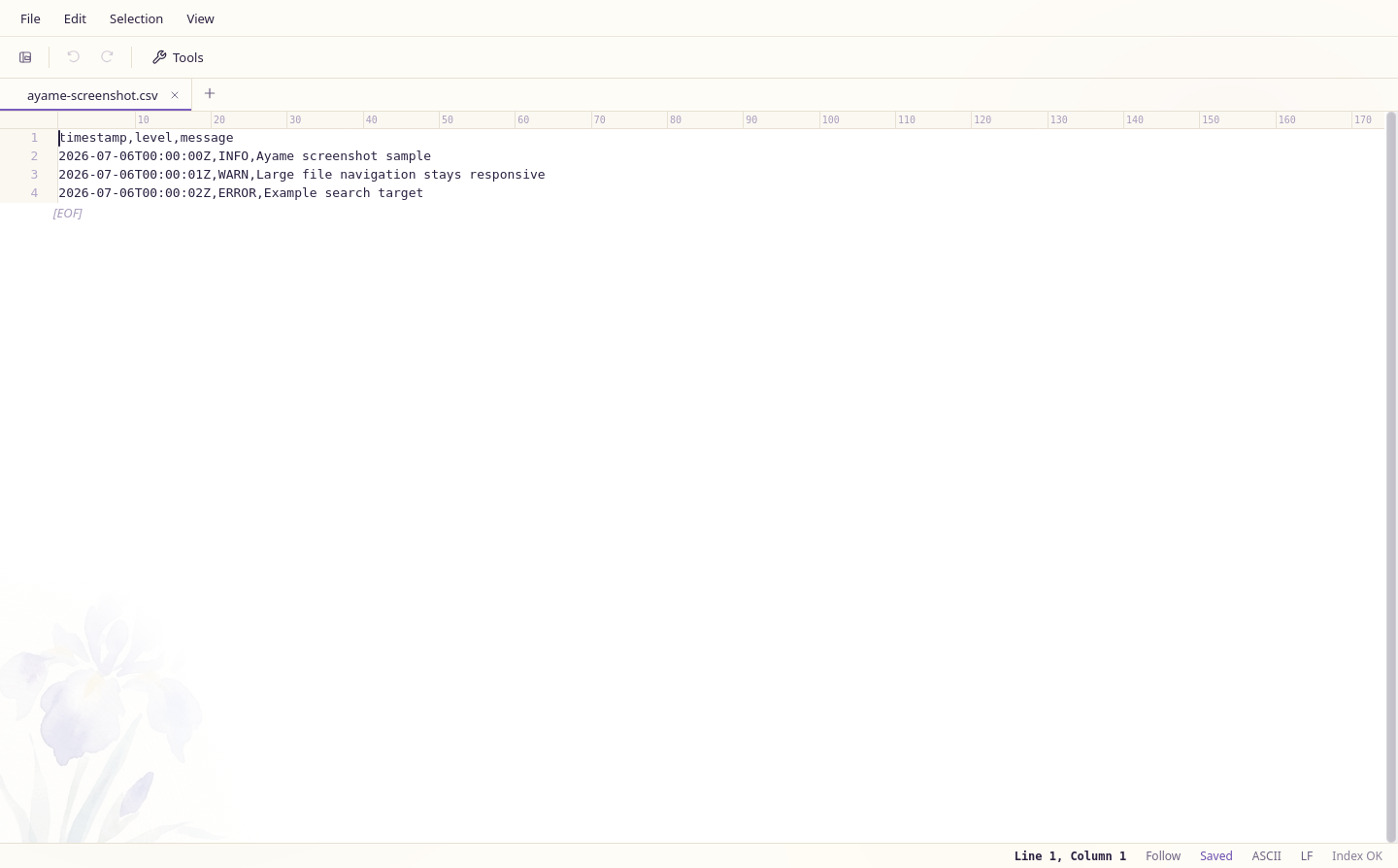
Main Window
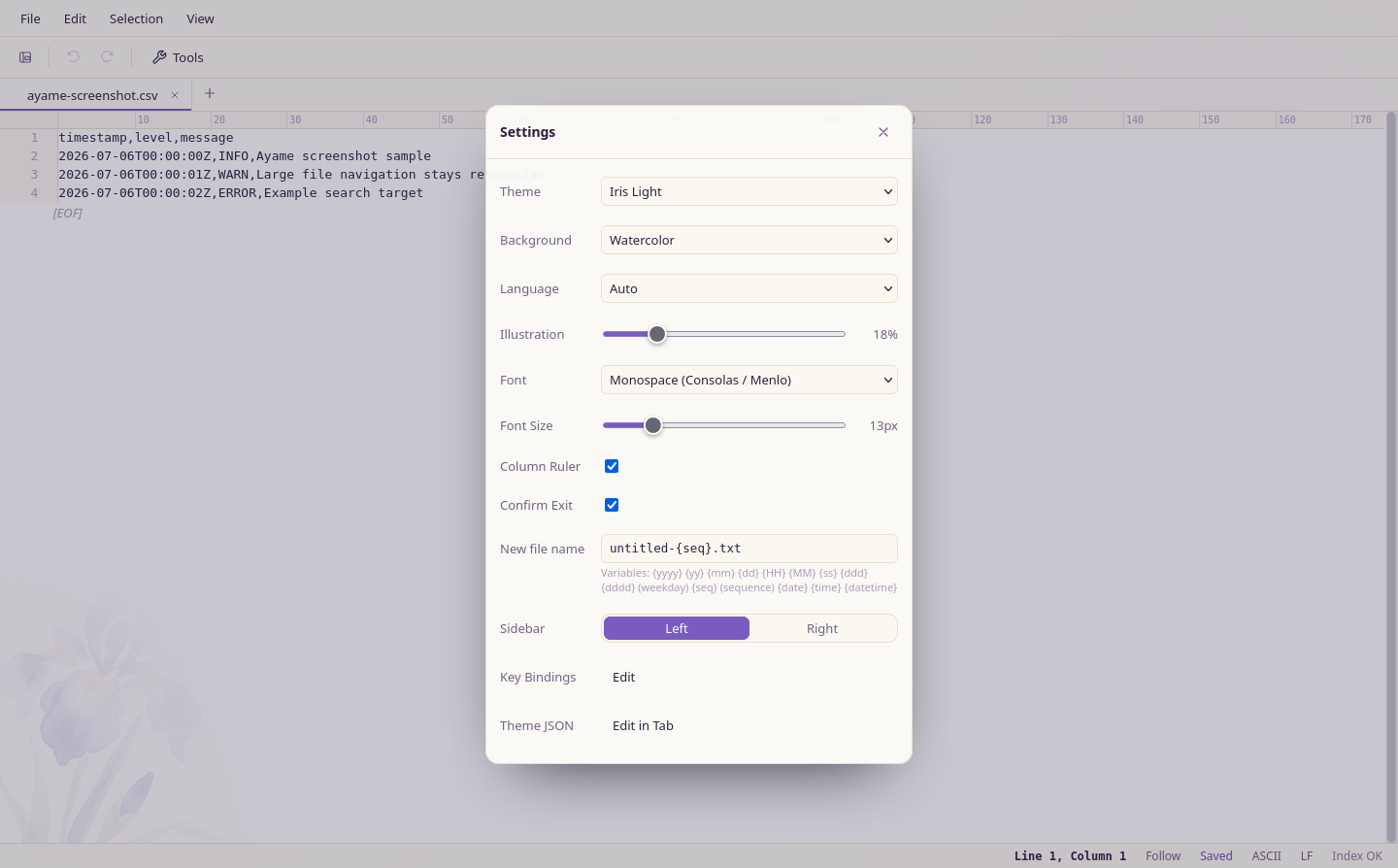
Settings and Theme
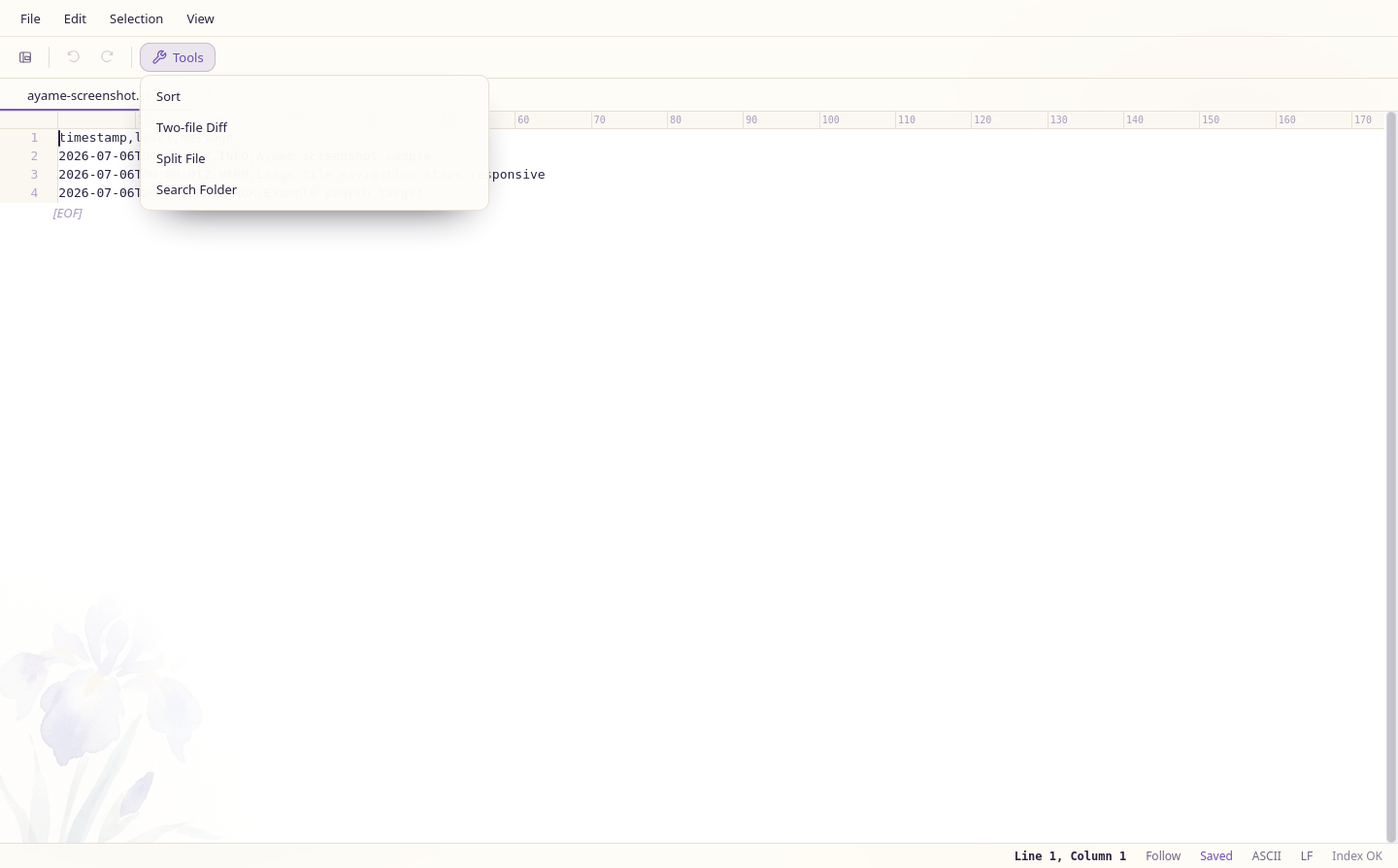
Tools
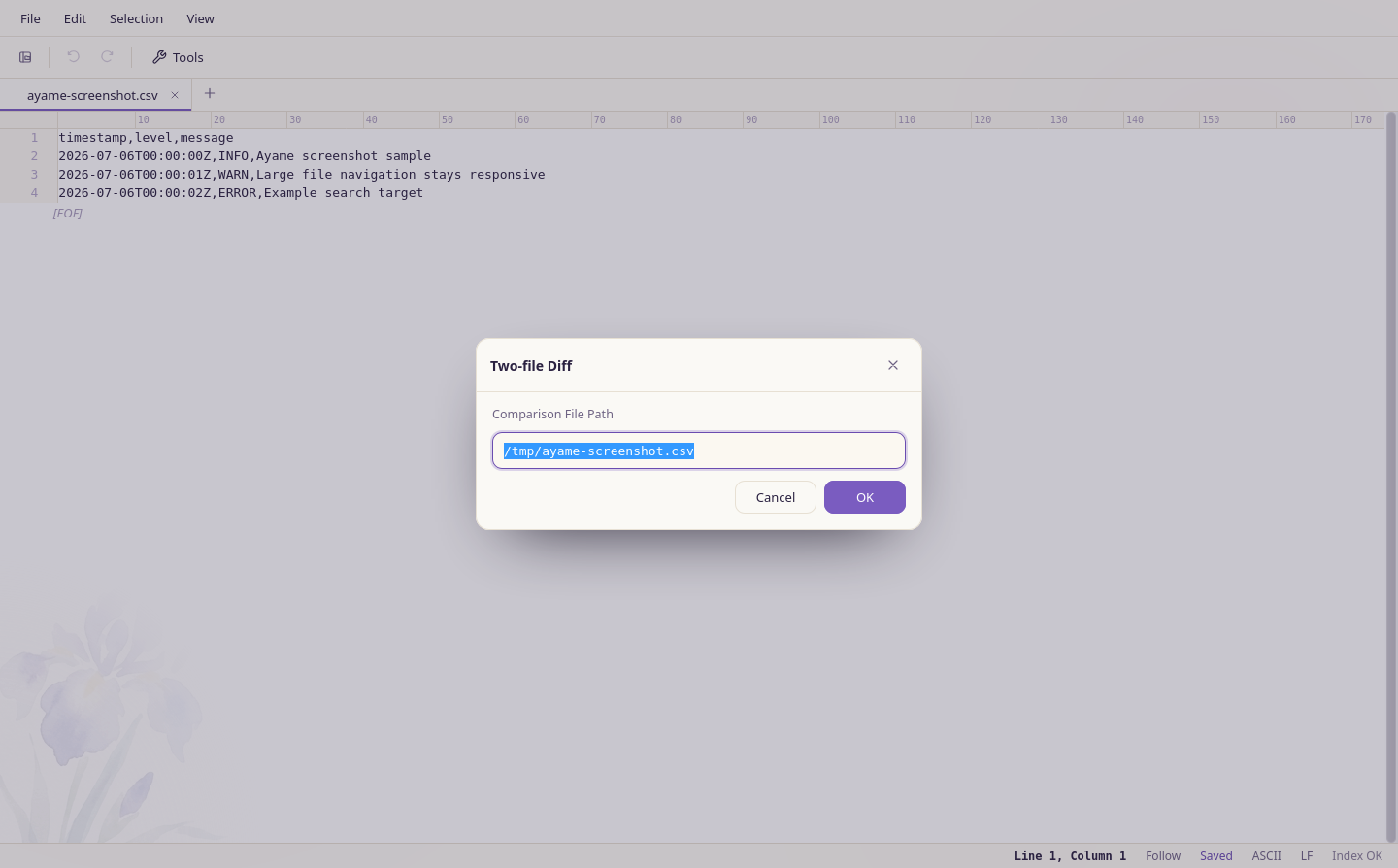
Two-file Diff
CLI Commands
ayame stat huge.csv
ayame head huge.log -n 20
ayame tail huge.log -n 200
ayame line huge.log 500000
ayame lines huge.log 500000 50
ayame search huge.log 'ERROR' -i --max 50
ayame diff old.csv new.csv --side-by-side
ayame sort huge.csv --out sorted.csv
ayame sortdiff old.csv new.csv -k 1 --summary
ayame replace huge.log ERROR WARN --out fixed.log
ayame case huge.csv lower --out lower.csv
ayame split huge.csv --lines 1000000
ayame group huge.csv -k 3 --value 5
ayame top huge.csv -k 2 -n 100 --numeric
ayame distinct huge.csv -k 4
ayame gen sample.csv --lines 100000
ayame cache info
ayame serve huge.csv --port 8777
These examples match the current ayame --help output. sort --out <FILE>
writes sorted text to a file; without --out, sort writes to stdout.
replace and case require --out <FILE>. split writes parts next to the
input by default, using <stem>.partNNNN<.ext> names. Output commands refuse to
overwrite existing files, so choose a new path when the target already exists.
Use CLI Reference or ayame --help for the full command and
option list.
Main Features
- Opens huge files without loading the whole file into memory.
- Supports UTF-8, Shift_JIS, EUC-JP, and ASCII. If text is garbled, reopen with an explicit encoding.
- Supports literal search, regex search, whole-word search, and case-insensitive search.
- Provides editing, undo / redo, rectangular selection, multi-cursor editing, and saving a selection to a file.
- Runs sort, replace, two-file diff, folder grep, split, and ASCII upper/lower conversion from the GUI.
- Includes tabs, an explorer, recent files, and tail-follow mode for appended logs.
- Lets you customize themes, fonts, wrapping, whitespace display, zenkaku-space underline, and key bindings.
- Keeps a crash-recovery log for unsaved edits.
Default Shortcuts
Ctrl can be entered as Cmd on macOS. Shortcuts can be changed from
Settings -> Key Bindings.
Bindable Actions
| Action | Default shortcut |
|---|---|
| New file | Ctrl+N |
| New window | Ctrl+Shift+N |
| Open | Ctrl+O |
| Save | Ctrl+S |
| Save as | Ctrl+Shift+S |
| Close tab | Ctrl+W, Alt+W |
| Command palette | Ctrl+Shift+P |
| Toggle explorer | Ctrl+B |
| Find | Ctrl+F |
| Replace | Ctrl+H |
| Next / previous match | F3, Shift+F3 |
| Go to line | Ctrl+G |
| Undo / redo | Ctrl+Z, Ctrl+Y or Ctrl+Shift+Z |
| Select all | Ctrl+A |
| Select next occurrence | Ctrl+D |
| Add cursor above / below | Ctrl+Alt+↑, Ctrl+Alt+↓ |
| Duplicate line | Ctrl+Shift+D |
| Move line up / down | Alt+↑, Alt+↓ |
| Delete line | Ctrl+Shift+K |
| Copy / cut | Ctrl+C, Ctrl+X |
| Search options: case / word / regex | Alt+C, Alt+W, Alt+R |
| Sort and overwrite current file | Unassigned |
| Diff with another file | Unassigned |
| Split current file | Unassigned |
| Grep a folder | Unassigned |
| Transform selection to uppercase / lowercase | Unassigned |
| Settings | Unassigned |
| Key bindings | Unassigned |
| Close the find bar or a dialog | Esc |
Unassigned actions appear in Settings -> Key Bindings; assign a shortcut if
you use them often.
Menu and Status Operations
These commands have no default key binding in the current build. Open them from
the menu, status bar, or command palette (Ctrl+Shift+P) where listed.
| Operation | Where to open it |
|---|---|
Follow Tail (tail -f) |
View -> Follow Tail, status tail button, or command palette |
| Show whitespace and line endings | View -> Show Whitespace and Line Endings or command palette |
| Underline full-width spaces | View -> Underline Full-width Spaces or command palette |
| Word wrap | View -> Word Wrap or command palette |
| Convert encoding / line endings and save | File -> Encoding / Line Endings..., or click the encoding/EOL status segment |
| Reopen with a different encoding | Open Encoding / Line Endings..., choose an encoding, then use Reopen |
| Save selection to file | Selection context menu |